
Native Apple app · iPhone · iPad · Mac · Watch
Your roster runs your life. This runs your roster.
ShiftKit plans your swing, tracks how you’re actually coping, and tells you when to stop drinking coffee. Built for paramedics, nurses, rescue crews, miners and FIFO workers — not for people with office hours.

Built in SwiftUI and SwiftData. One purchase covers iPhone, iPad, Mac and Apple Watch. No account, no login, and no ShiftKit server.
Sunday 9 August
Night shift in 6h 20m
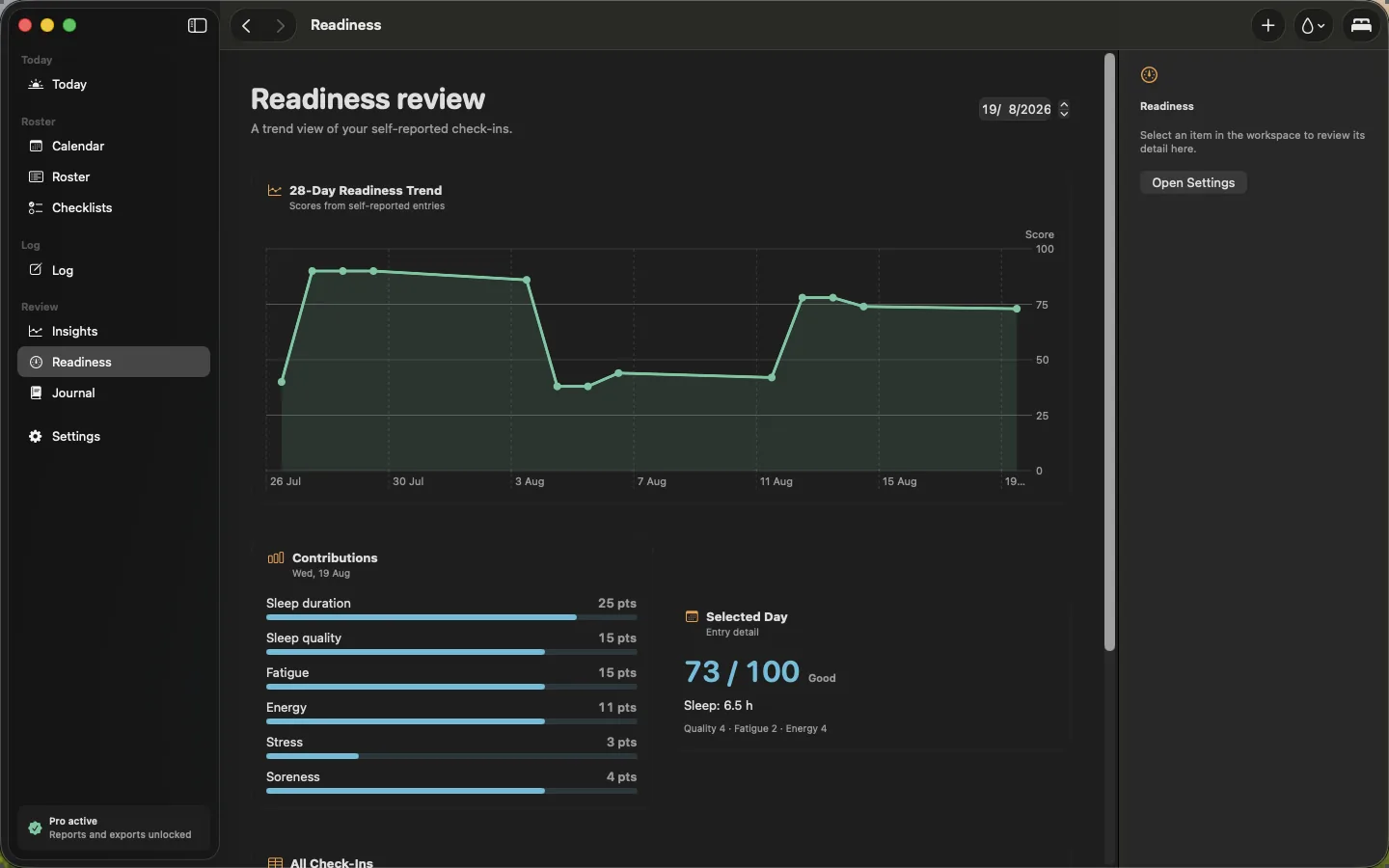
Readiness is a summary of what you logged. It is not a clinical measure and does not assess fitness for duty.
Scroll the window sideways to see the full desktop layout.
- No account. No ShiftKit server.
Nothing to sign up for. Open it and start.
- Your data stays in your own iCloud.
A private CloudKit database only you can read.
- No ads, no analytics, no tracking.
No third-party SDKs of any kind.
- One purchase covers iPhone, iPad, Mac and Watch.
Universal Purchase, buy once.
Every screen
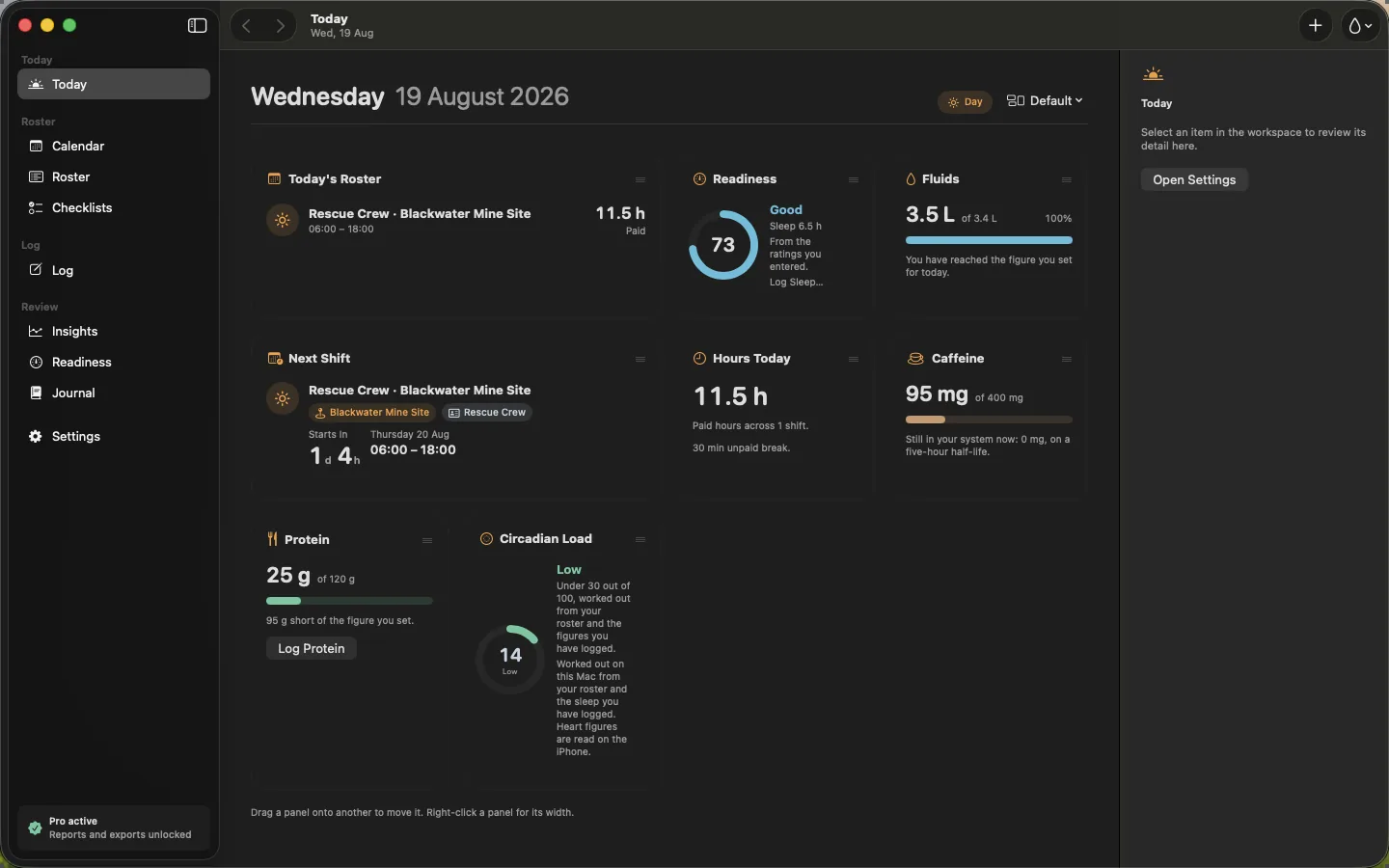
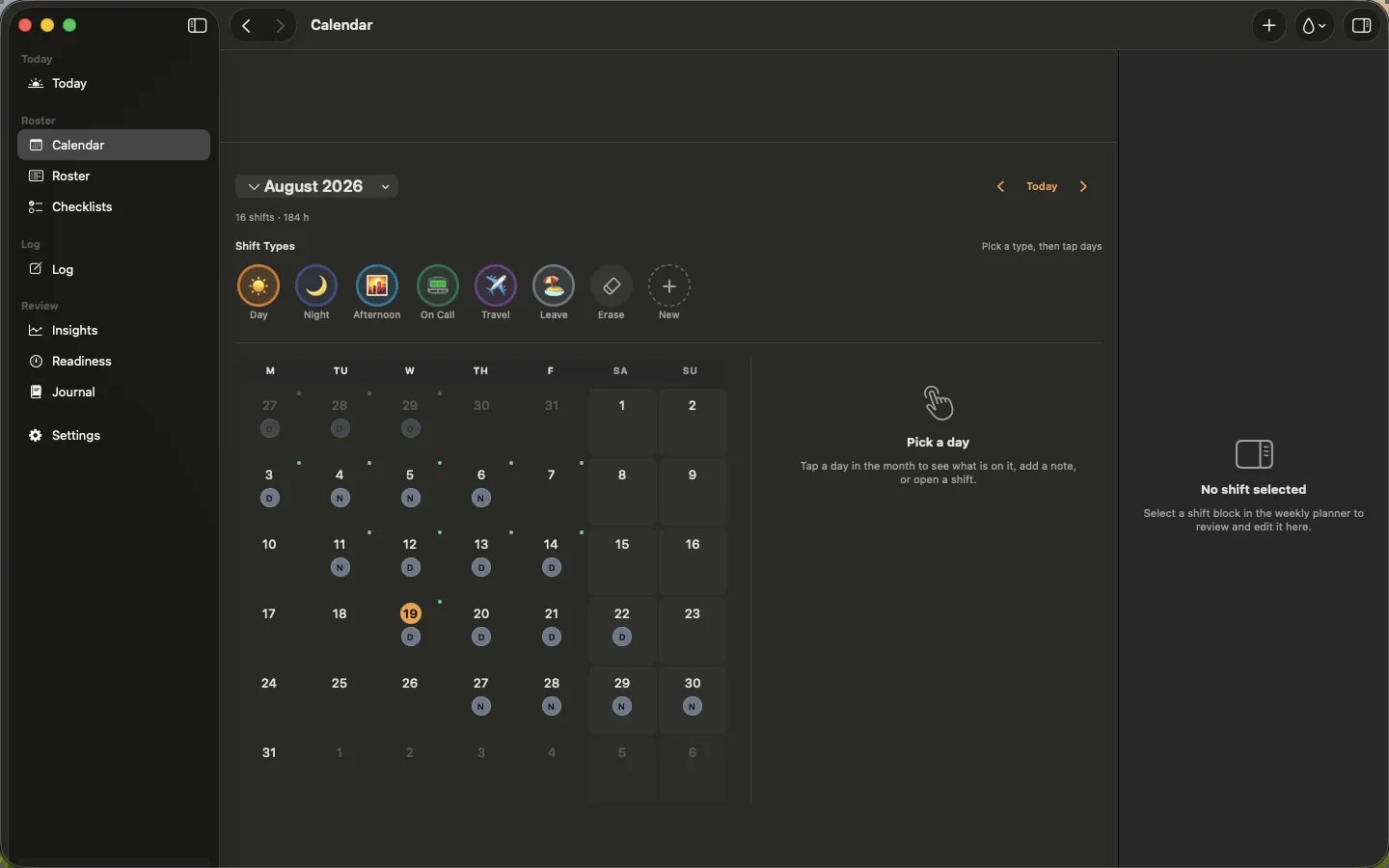
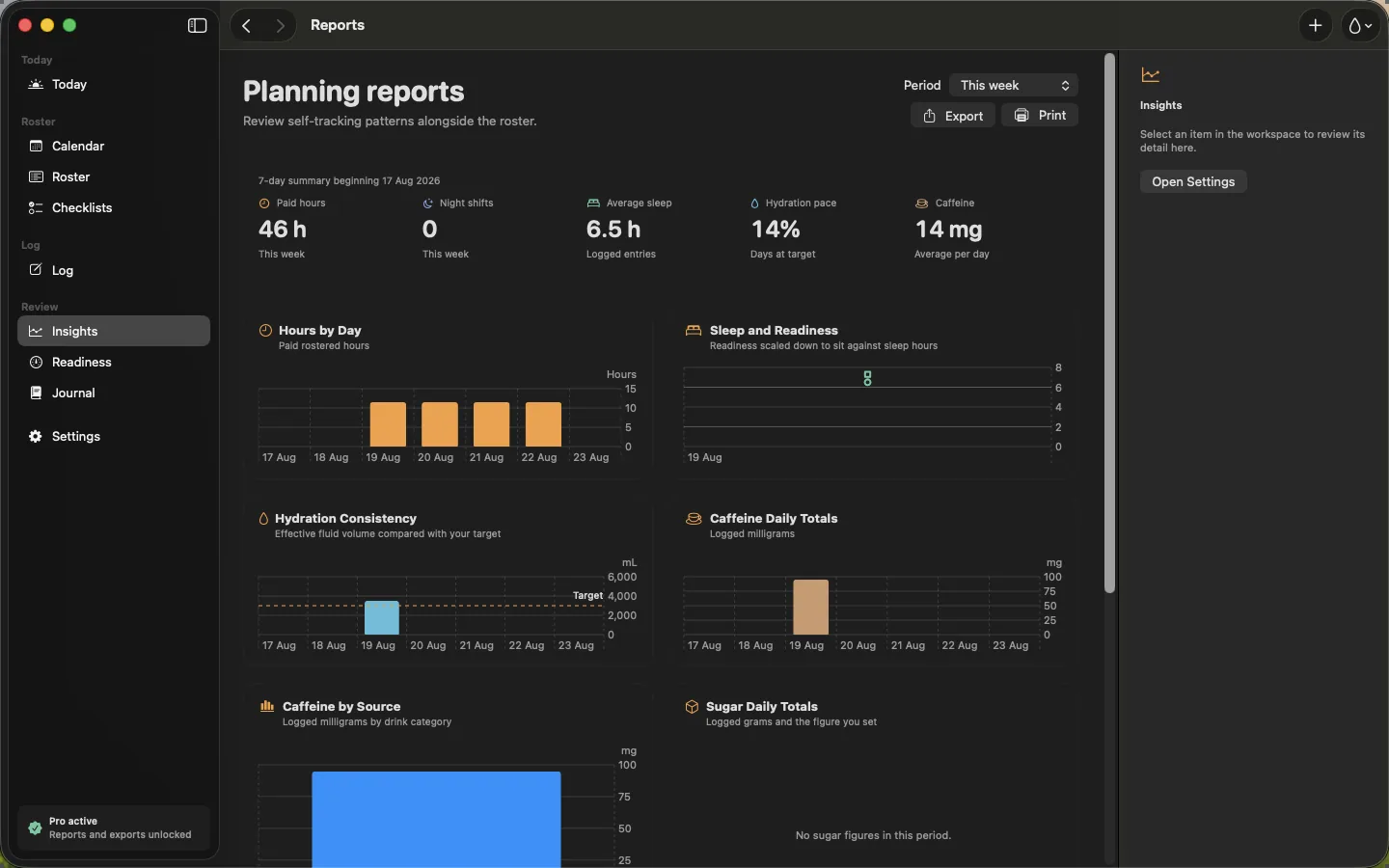
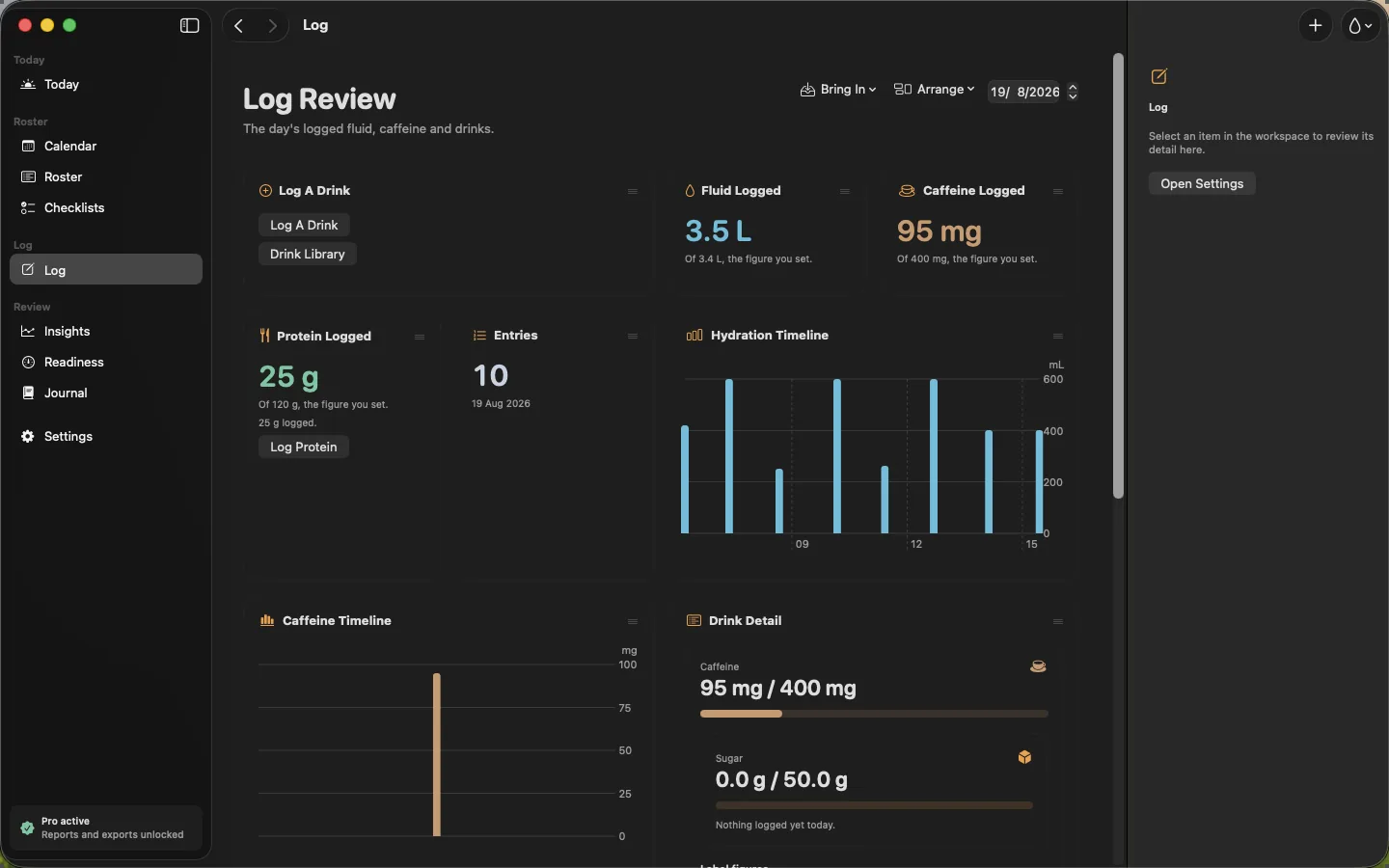
The app as it is, on all four devices
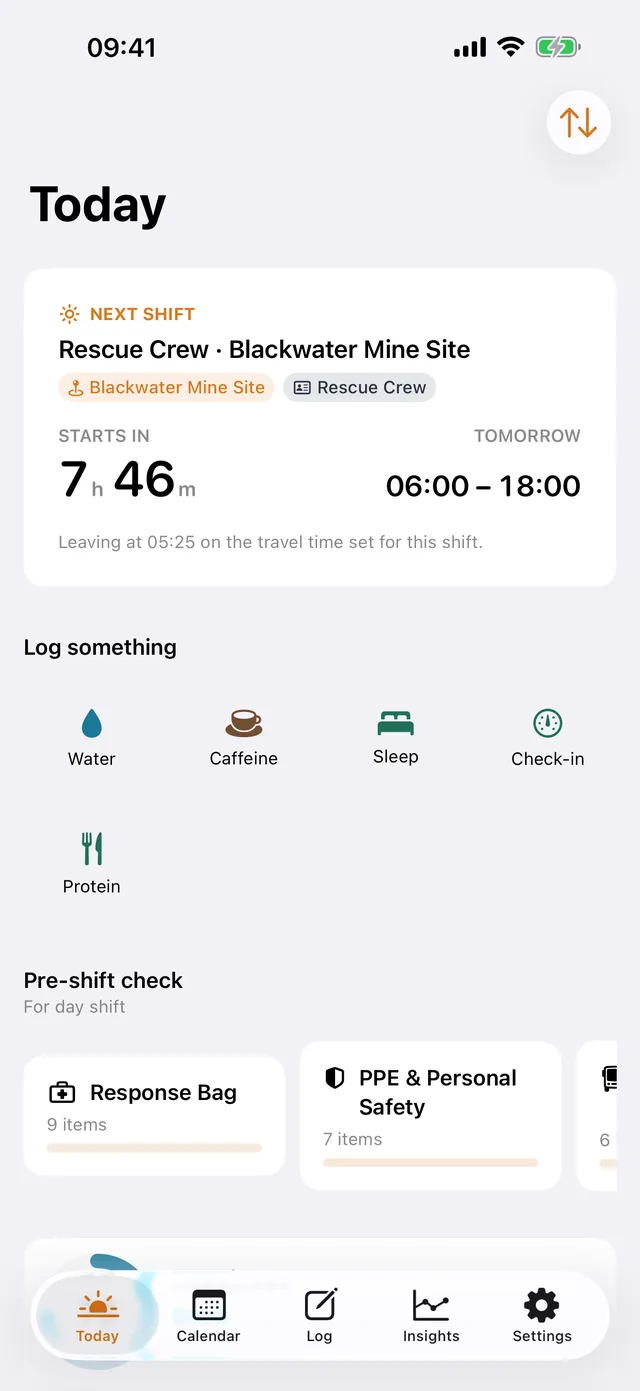
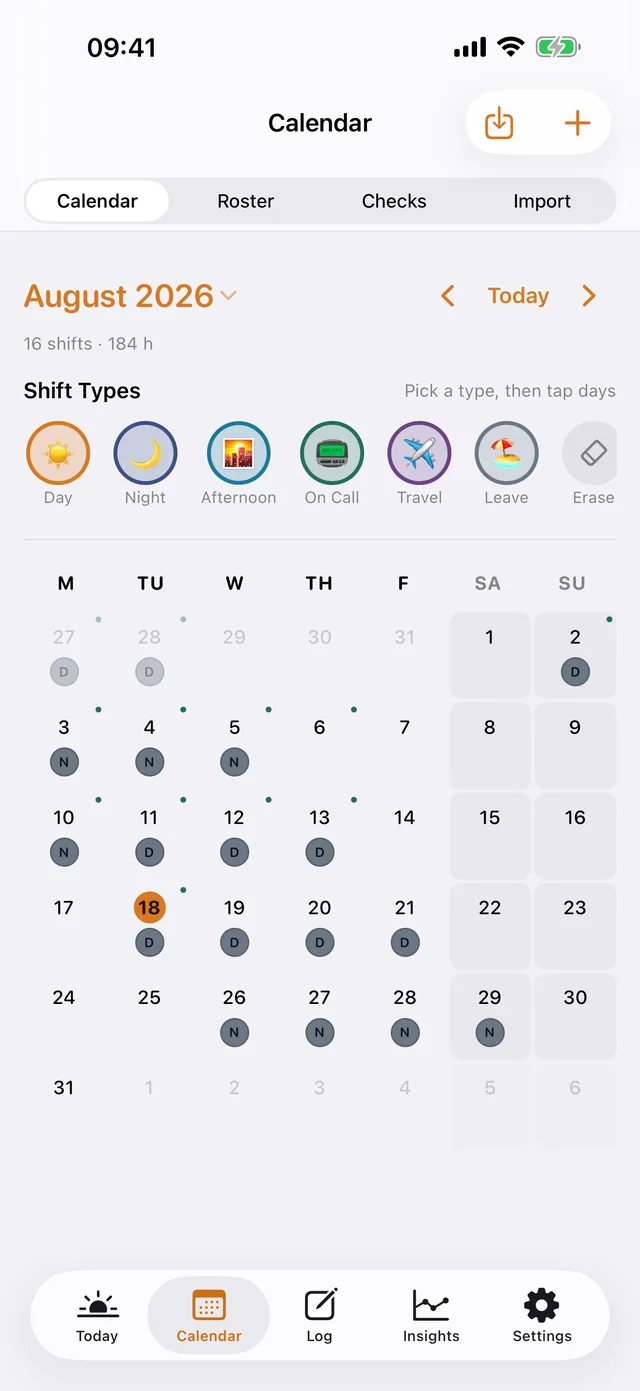
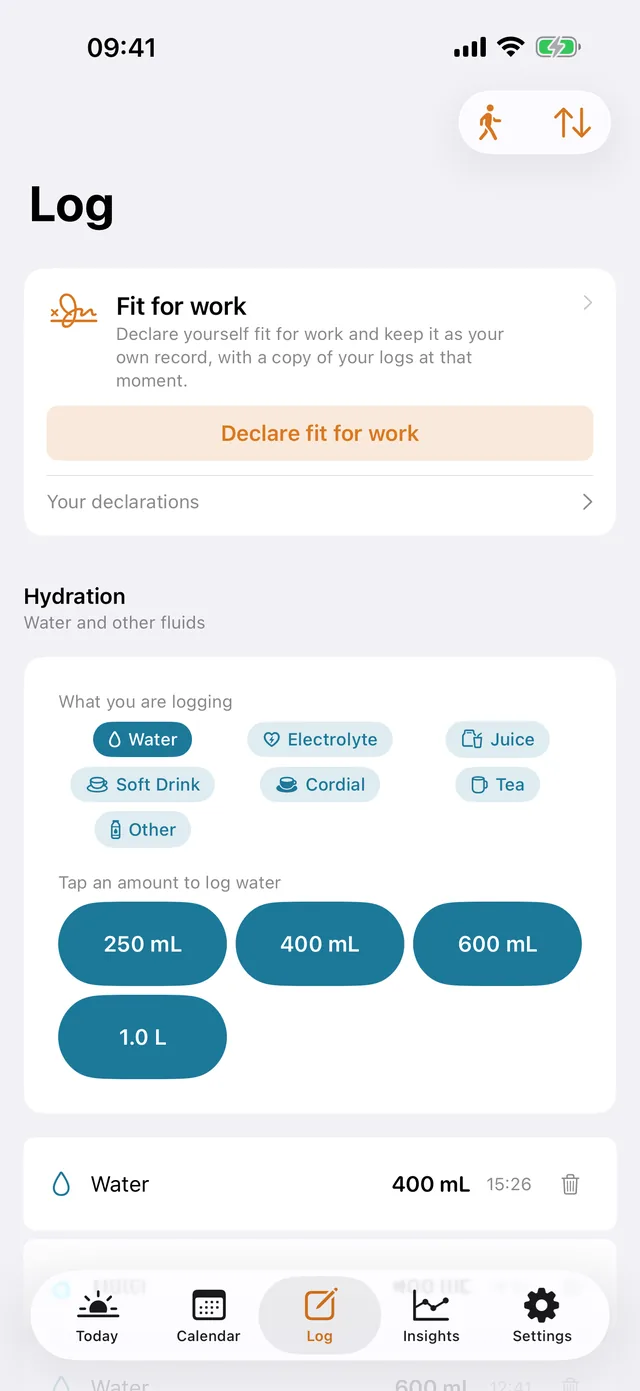
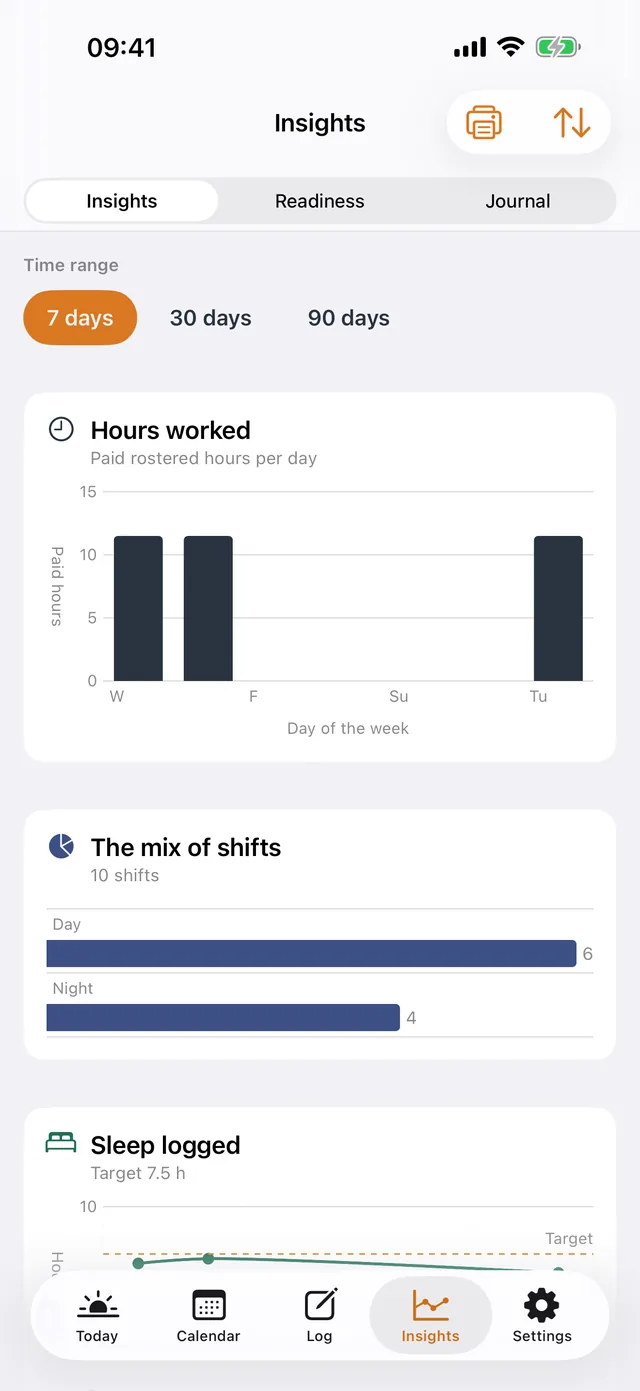
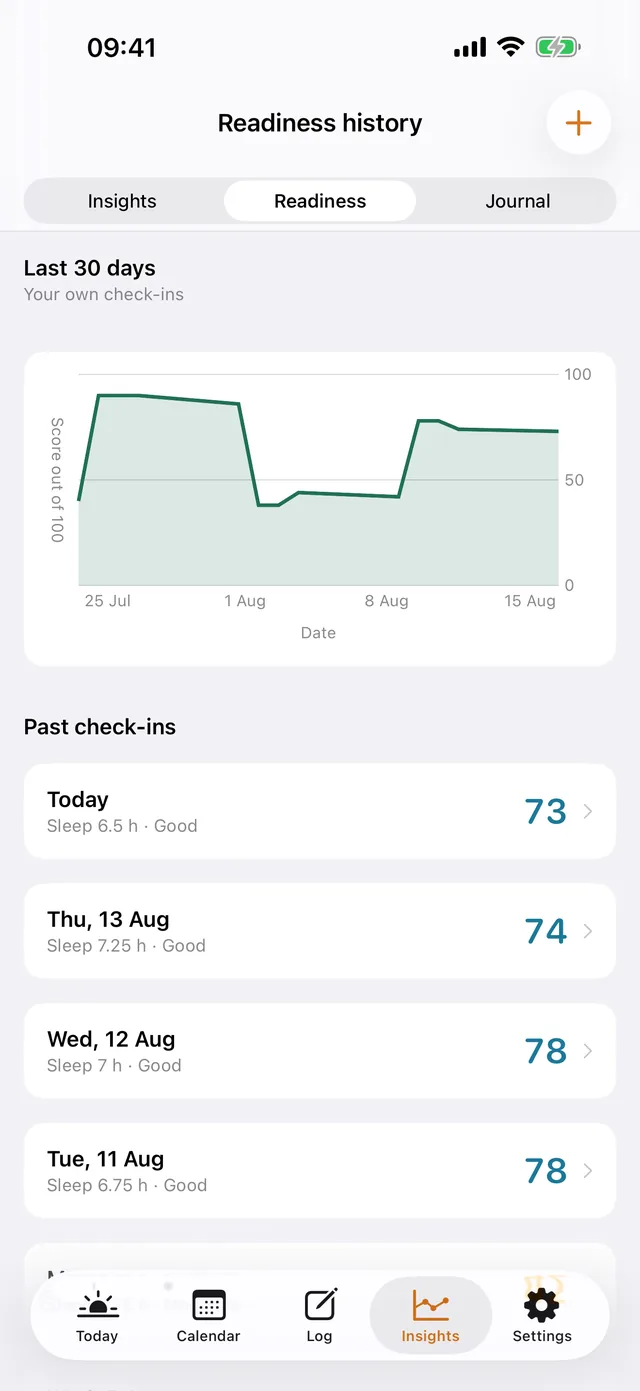
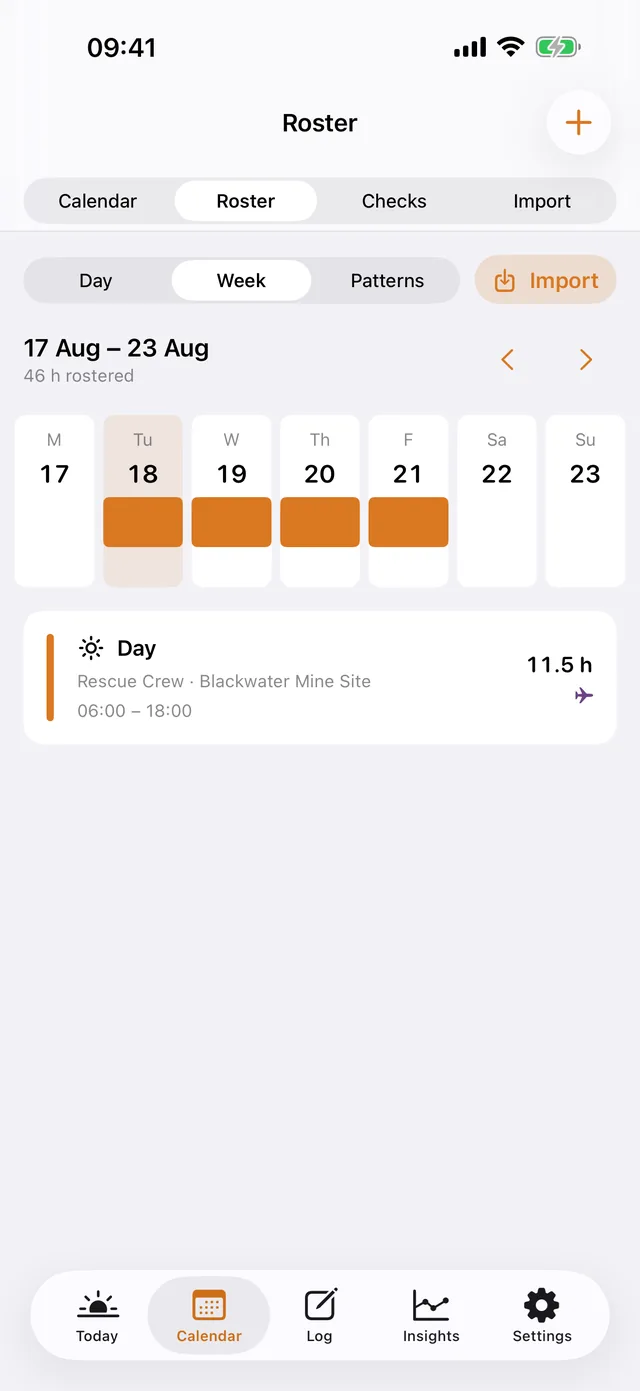
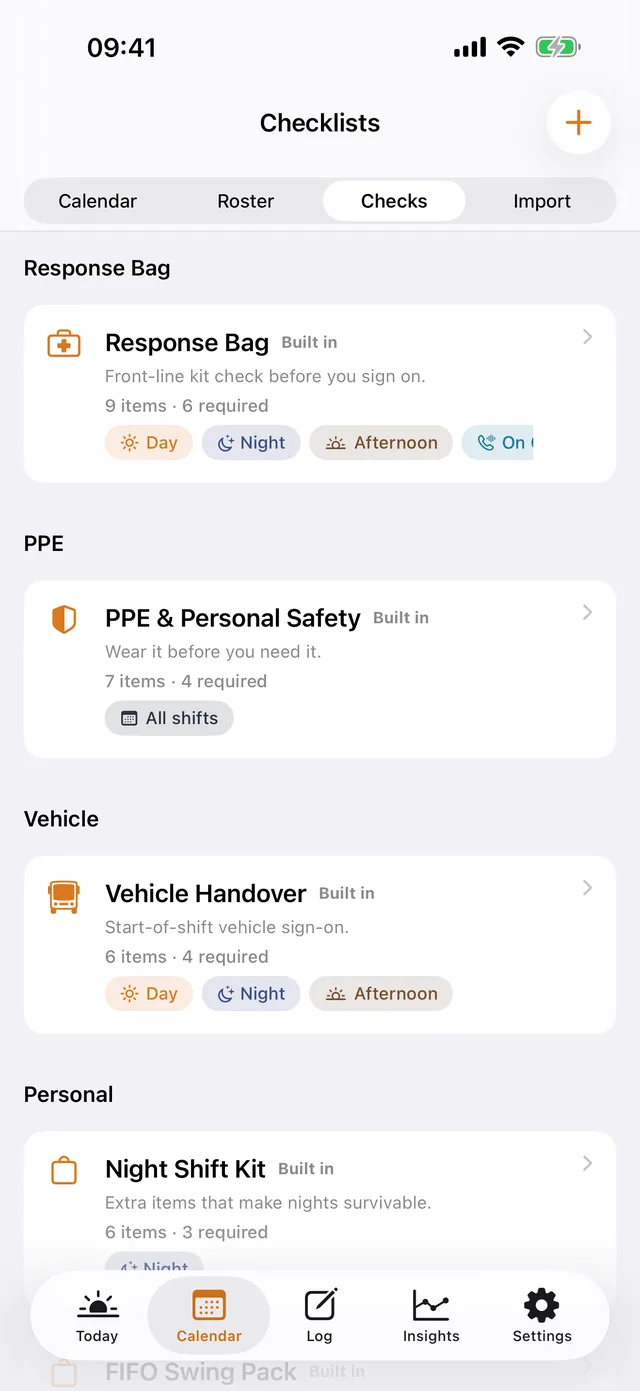
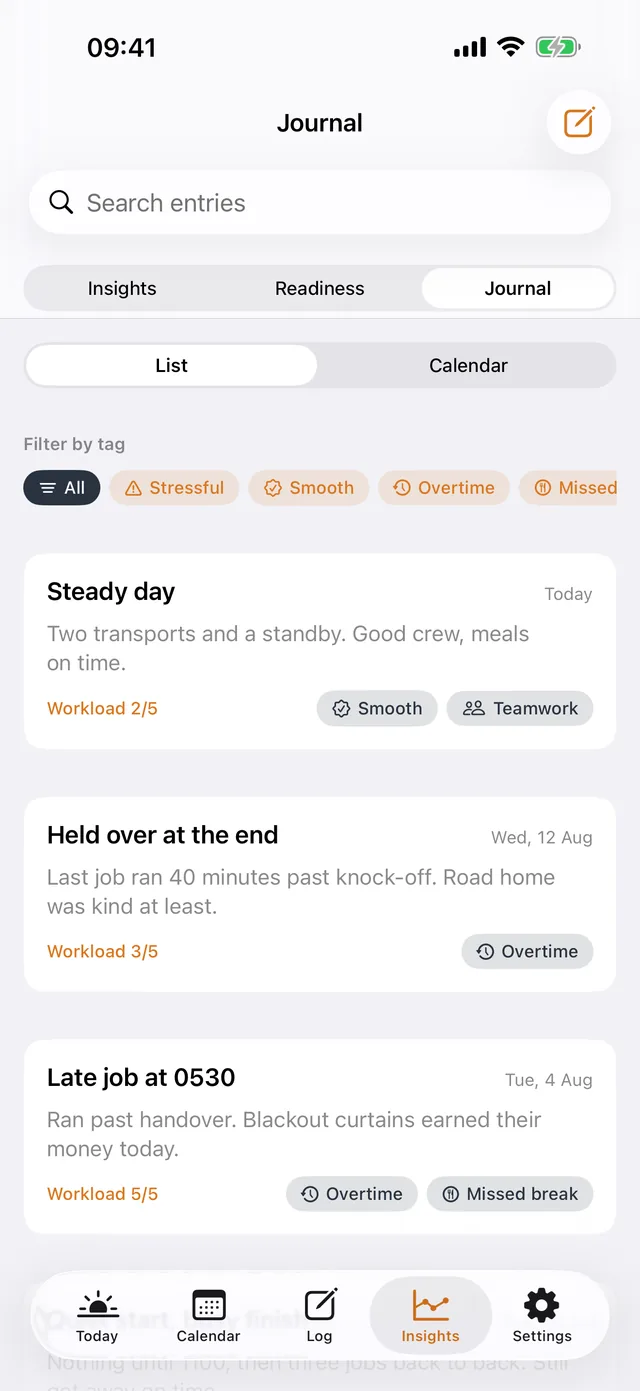
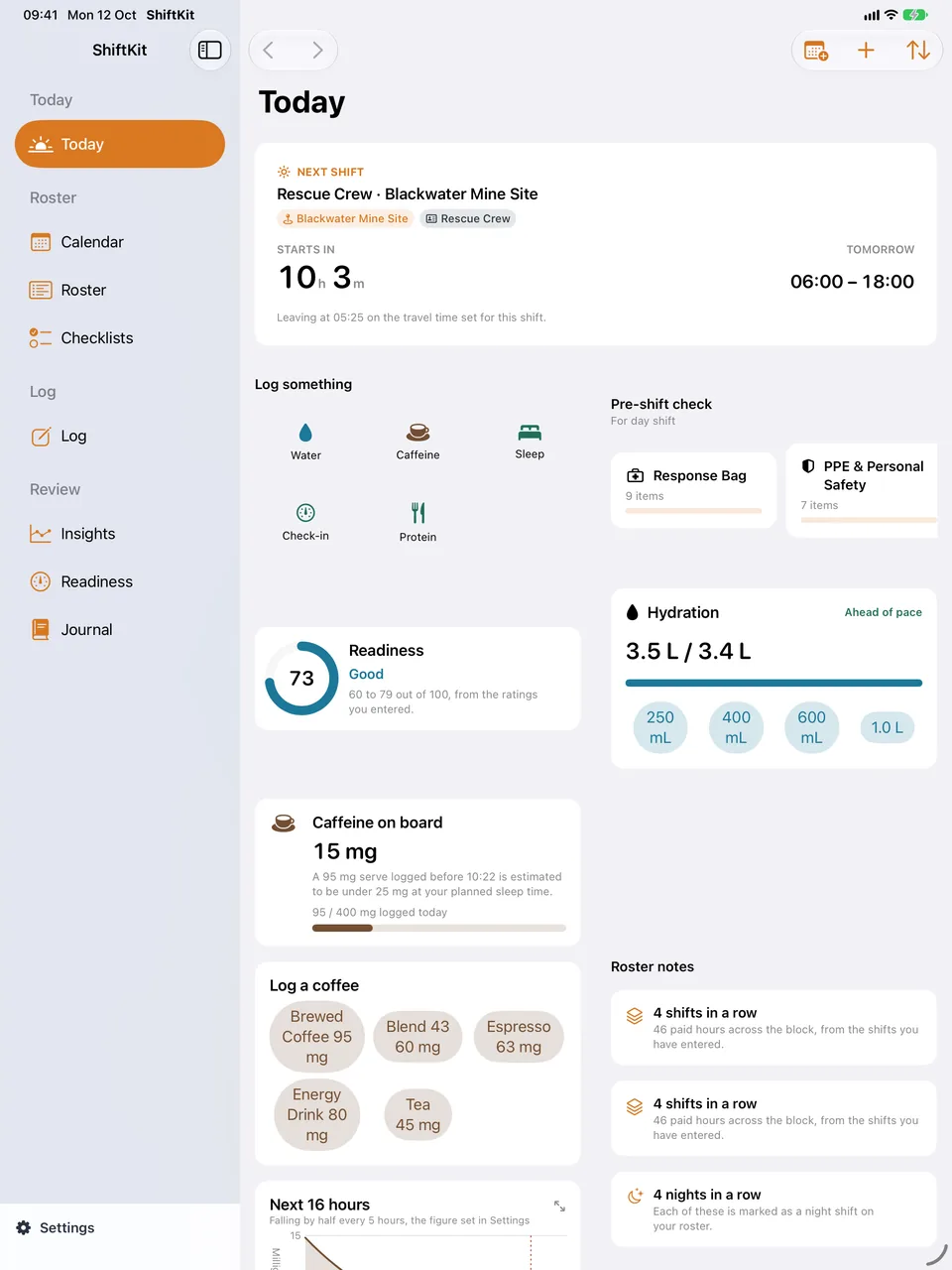
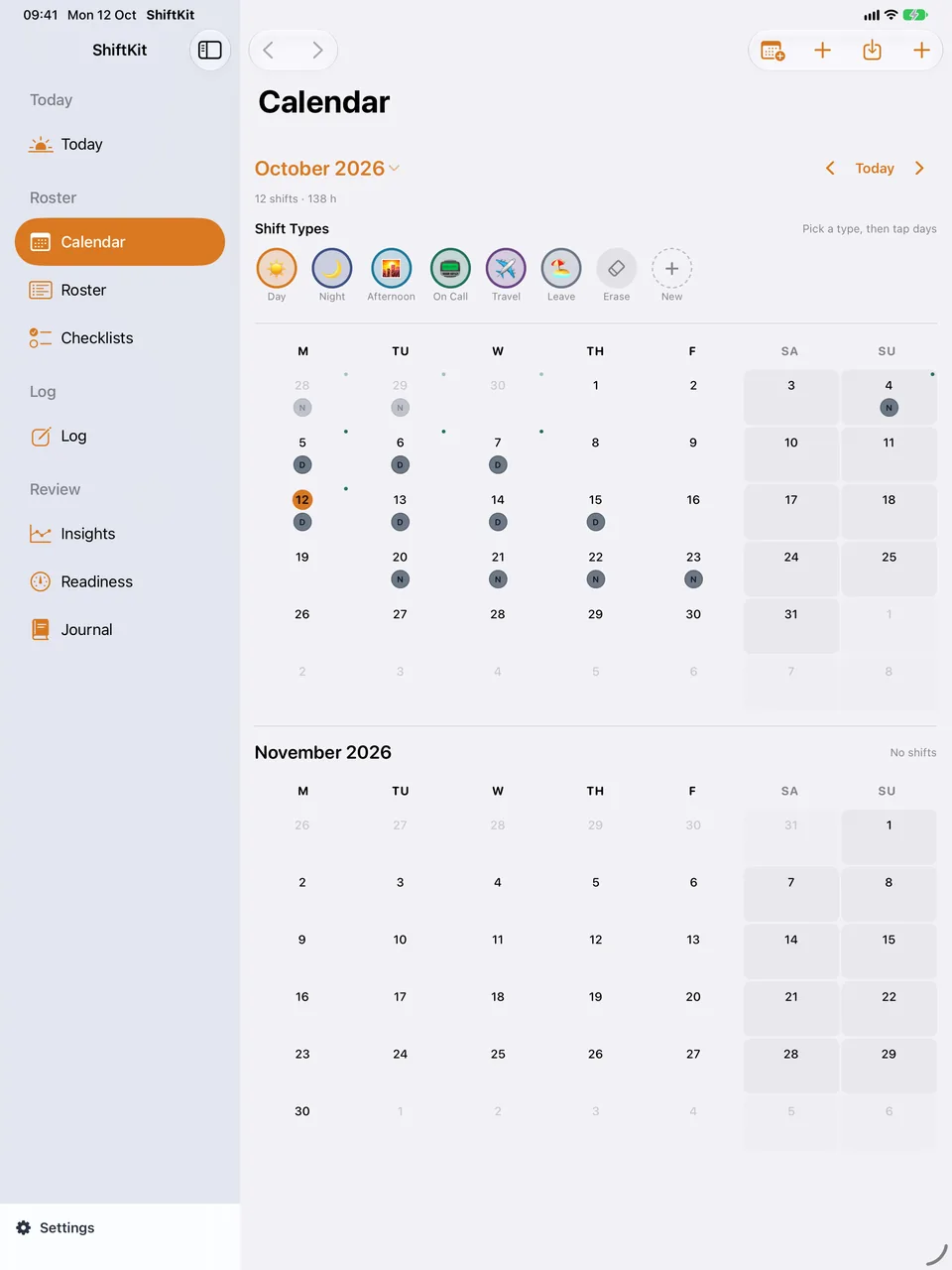
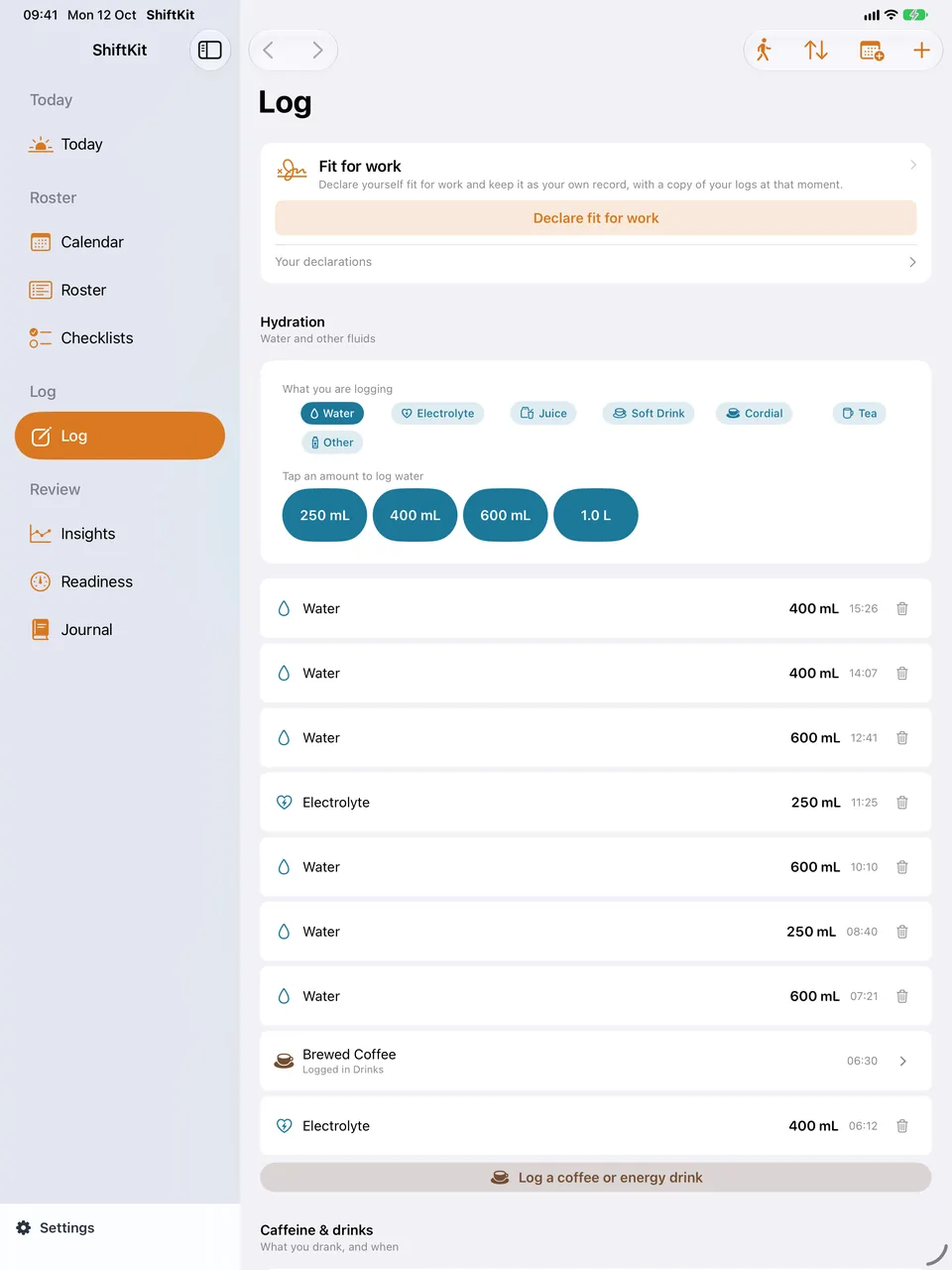
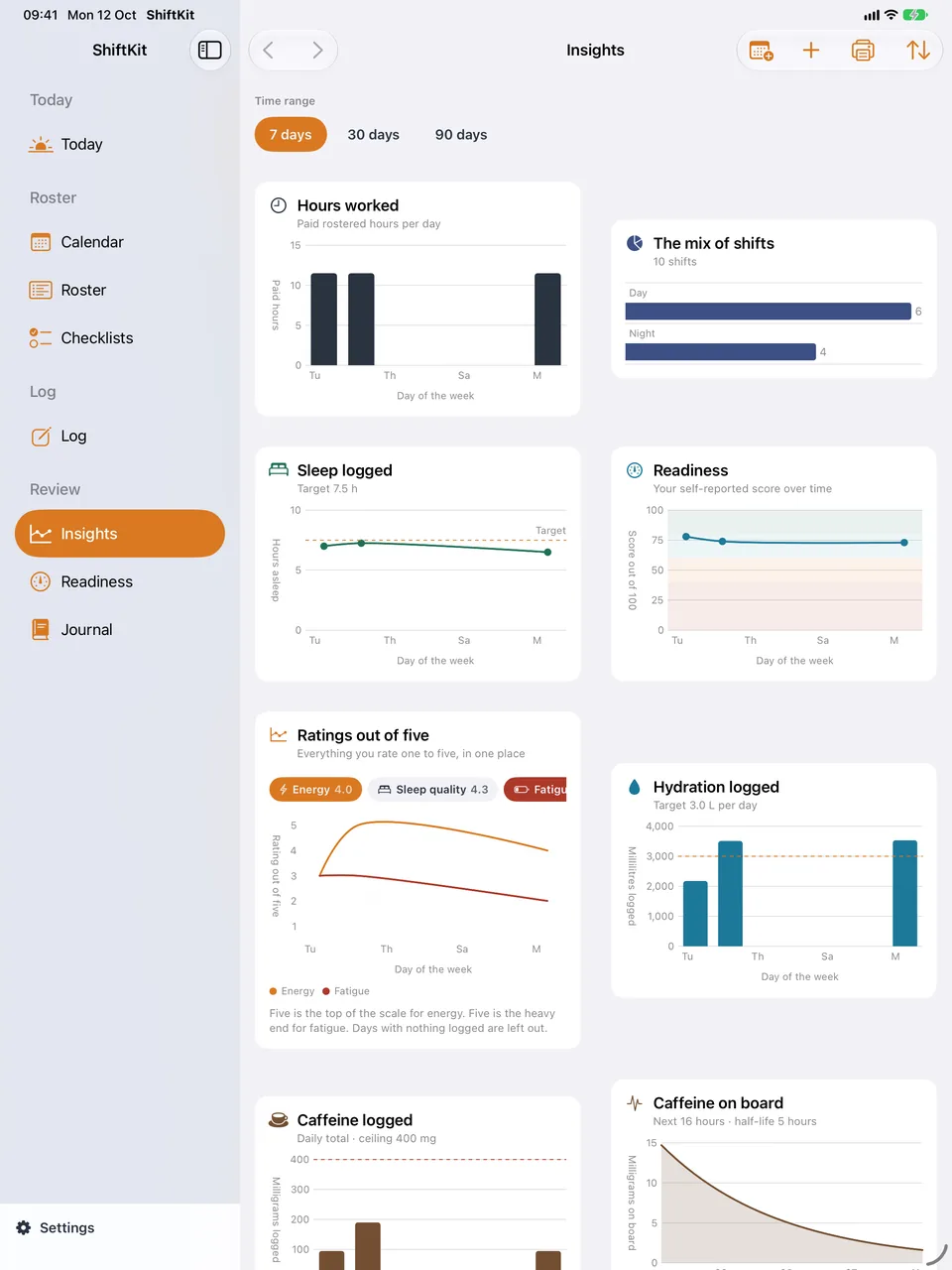
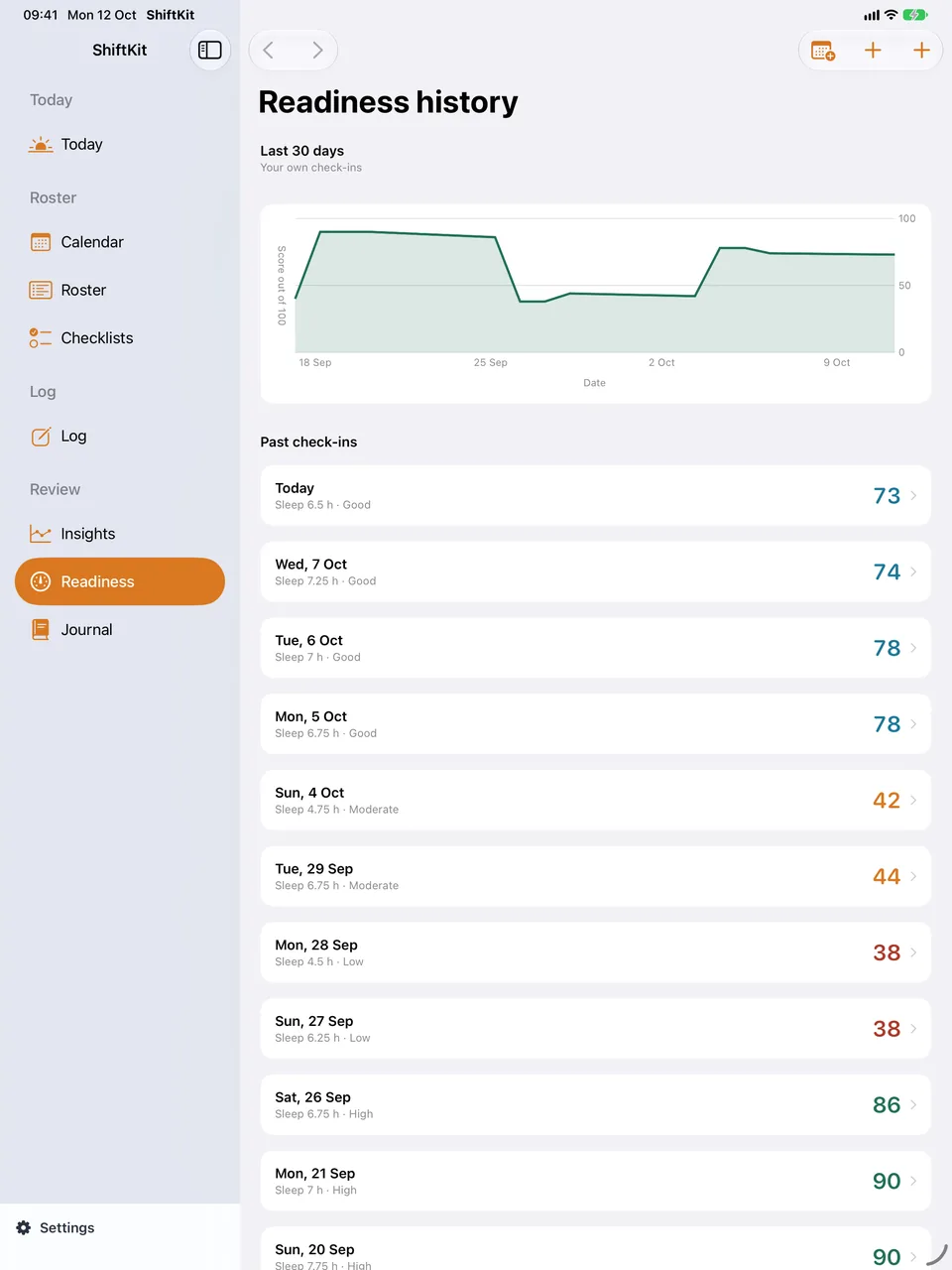
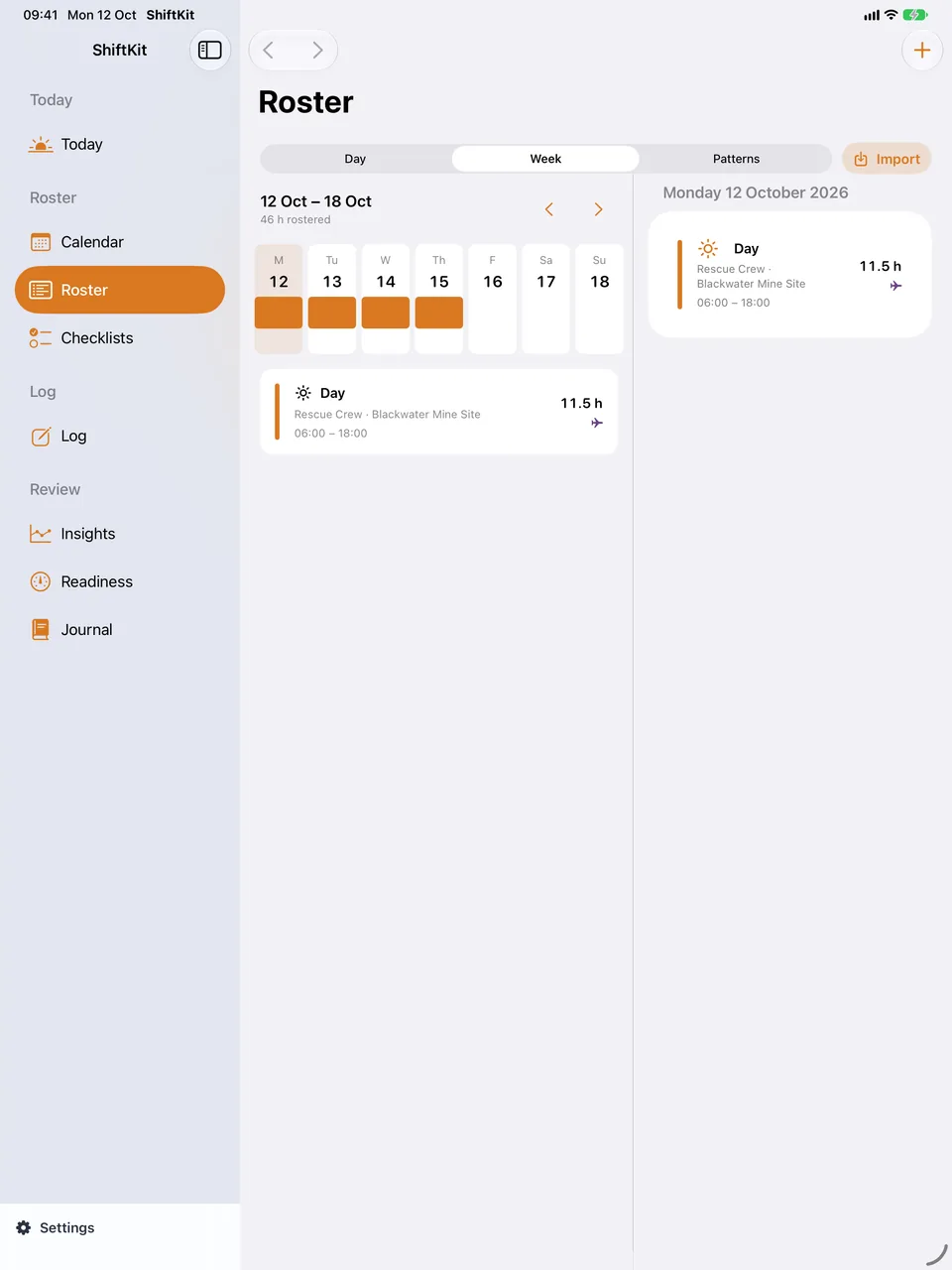
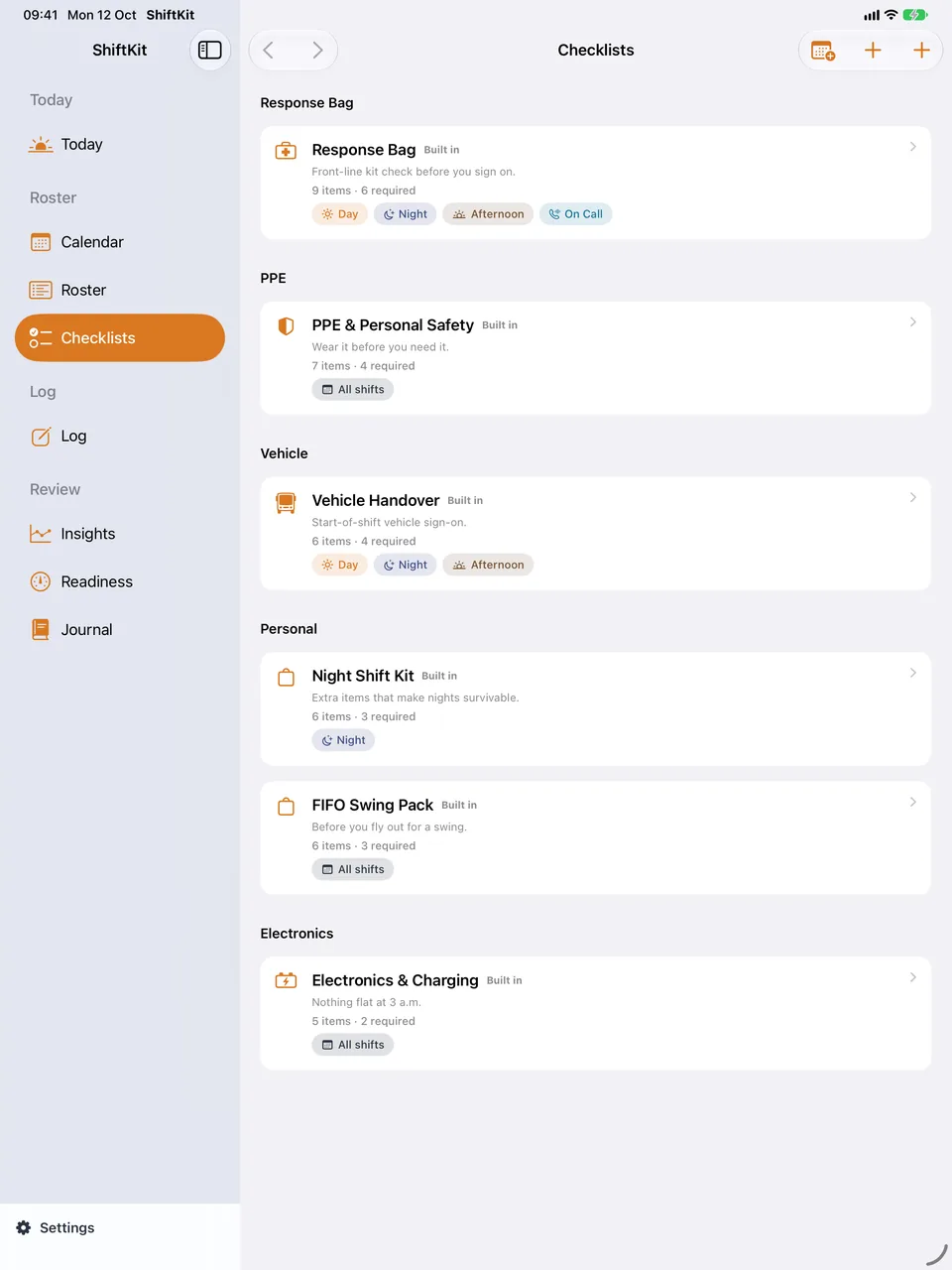
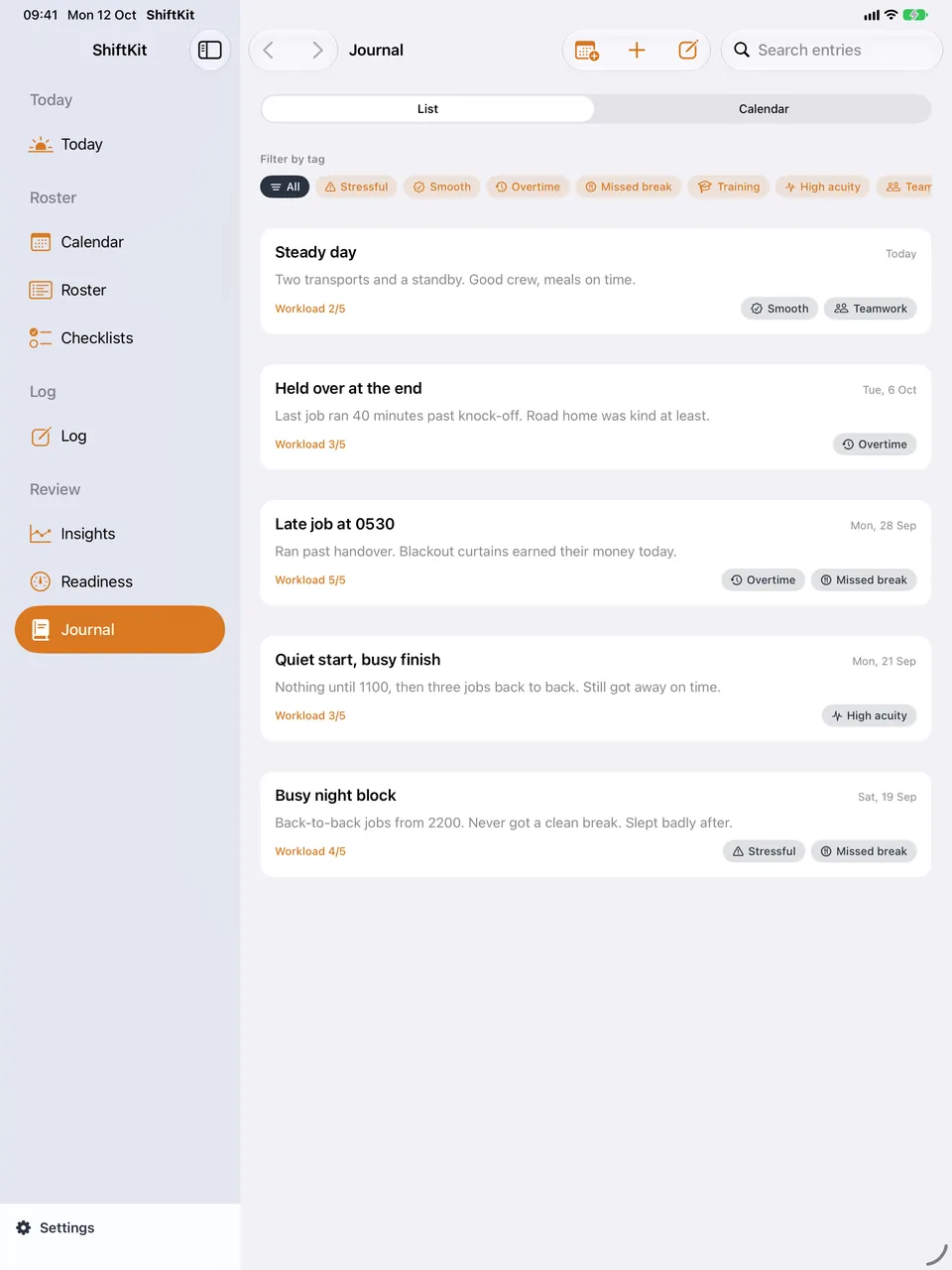
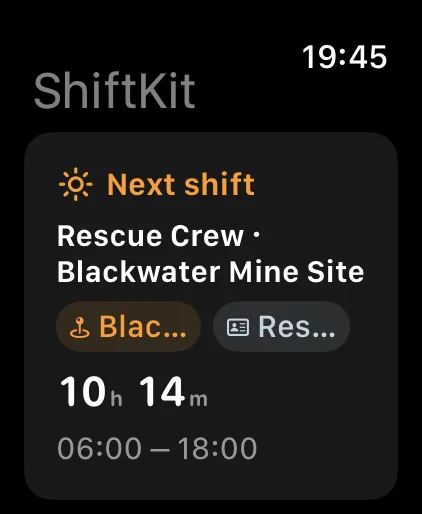
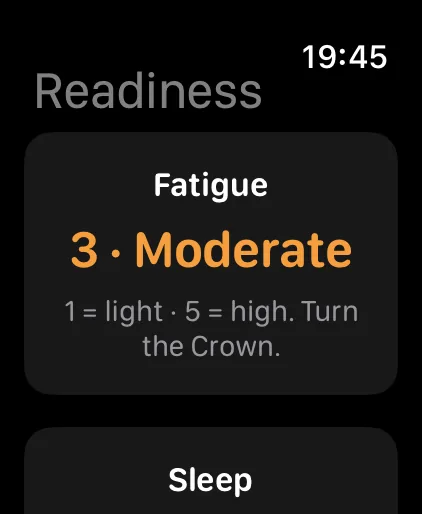
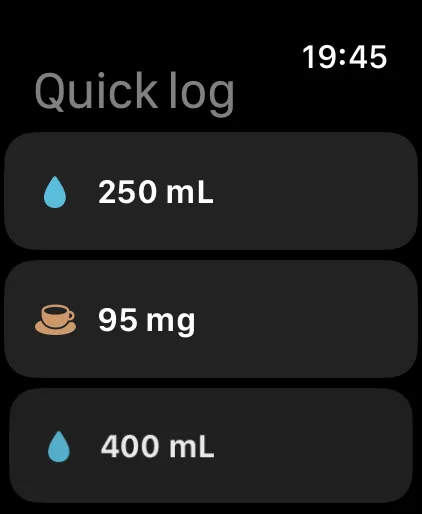
Taken from the shipping build: iPhone and iPad in light, the Mac in dark, and the watch. Swipe along each row.
iPhone
iPad
Mac
Apple Watch
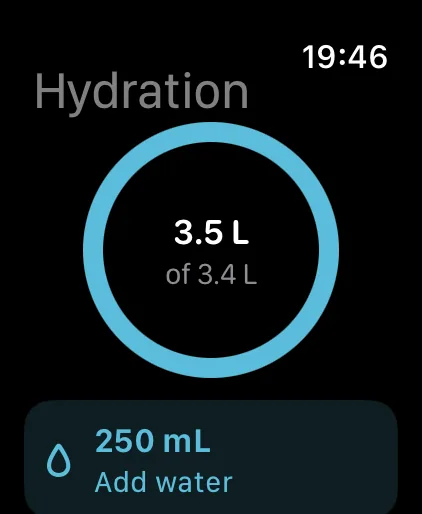
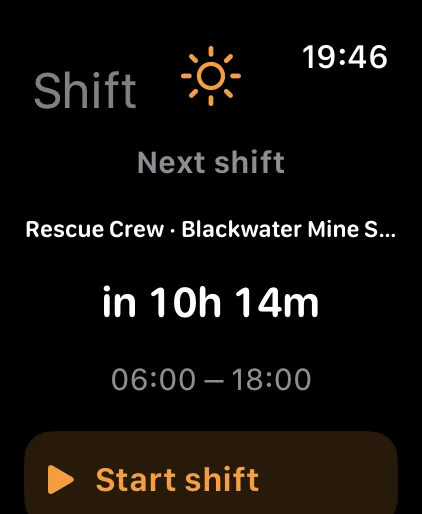
Roster
Plan a swing, not a month
The week planner is built around blocks of work, because that is how a roster actually arrives. Drag a shift, duplicate it across the swing, and let the pattern builder repeat it.
- Rotating patterns: 4-on 4-off, 2-2-3, 7-on 7-off, and FIFO swings like 8 and 6 or 14 and 14, set to repeat until you stop it.
- Eight shift kinds, with the crew, the role and the site on every shift, so the roster reads like your paper copy.
- A partner’s shifts can sit underneath yours as a striped overlay, and the whole roster can be written out to the household calendar.
Week 33
10 – 16 August · Rescue Crew
Scroll the window sideways to see the full week.
Casual, agency and locum work
Work that moves between places
Turn on casual mode and the Checklists tab becomes Work, built for shifts that are booked site by site rather than repeated as one roster.
- Keep sites and placements together, so each booking carries the place and role it belongs to.
- Set availability around the days and times you can work, then keep upcoming work in one view.
- Move between casual, agency and locum jobs without forcing them into a permanent roster pattern.
Your work view
Sites, placements and availability
Use the Work tab to keep the practical detail close to each booking: where you are going, which placement it is for, and when you are available for the next one.
Readiness
A readiness figure you can check in ten seconds
Six things you log, weighted, turned into one number out of 100. The weighting is published here because you should know exactly what the figure is made of.
| Input | Weight |
|---|---|
| Sleep duration | 30% |
| Sleep quality | 20% |
| Fatigue | 20% |
| Energy | 15% |
| Stress | 10% |
| Soreness | 5% |
- Under 40 · Low
- 40 – 59 · Fair
- 60 – 79 · Good
- 80+ · Strong
Read this plainly
The readiness figure is a summary of what you typed in. It is not clinical advice, it is not a medical measurement, and it does not clear you or stop you from working. Fitness for duty is a matter for you and your employer.

Intake
Caffeine timing, named drinks and sugar
Quick caffeine logging stays free. ShiftKit models the on-board curve on a five-hour half-life and works back from your sleep window to show a cut-off for the day.
- Free quick logging for coffee, espresso, energy drink and tea, with your own milligram figure.
- The cut-off moves with your roster — a night shift pushes it later, a day shift pulls it earlier.
- Water logging sits alongside it, with a daily target you set yourself.
- The drinks library ships with the tins and sachets that actually turn up in a crib room — instant coffee, three-in-one sachets, chicory blends and the rest — each with its own stated serve.
- Pro: log named products by stated serve, read the full label record, and track sugar against the figure you set.
- ⇧⌘C opens the caffeine log without leaving the keyboard.
Checklists
Checklists that match the shift
A night rescue callout does not need the same kit as a training day. Templates are filtered by shift kind, so the list you open is the one for the shift you are about to start.
- Mark items as required — the list will not read as complete until those are ticked.
- Templates per shift kind, with a plain checklist for anything one-off.
- Reset on completion, ready for the next rotation.
- Two templates on the free tier, unlimited on Pro.

Sharing
Two people, one roster
Send your partner a share link over iCloud and your shifts appear in their copy of ShiftKit. No spreadsheets, no photographs of a printed roster, no files to send.
- Overlay only — their shifts sit under yours as a striped block.
- Let me copy — pull a single shift across when you need it.
- Merge automatically — their roster is kept in step with yours.
- Markers and comments — choose whether your own operational notes go with a shared roster, and whether you see each person’s notes.
Be clear about the direction
Each invitation shares one way. If you both want to see each other’s shifts, you each send one. Travel entries, markers and any comments you choose to include are part of the shared roster. Sleep, hydration, caffeine, readiness, checklists and journal entries are never shared.

Sunday 9 August
Night shift in 6h 20m
Readiness
Sleep 6h 40m · quality 3/5
Fatigue 2 · Energy 3 · Stress 2
Sarah · Night 19:00–07:00 shown from a shared roster.
Calendar
In the calendar everyone already reads
Shifts can be written to any calendar account your device holds — iCloud, Outlook, Microsoft 365, Exchange, Google, Fastmail or on-device — so the rest of the household sees them without opening ShiftKit. Sync is one-way, out of the app.
- Automatic on every change, or manual when you say so.
- Pick the destination calendar — a dedicated “ShiftKit” calendar is the tidy option.
- Calendars are grouped and labelled by the account they belong to, read-only feeds are left out, and ShiftKit tells you when the calendar you chose sits on a work account your colleagues may be able to see.
- A window you control: 60 days ahead and 14 days back by default.
- Markers and operational comments stay in ShiftKit’s calendar, where they can sit on a shift or a blank day.
- It only ever touches the events it created. “Remove ShiftKit events” cleans up everything it wrote.
Calendar
Apple Calendar sync
Last synced today at 05:42 · 38 events written. ShiftKit only reads back the events it created.
Scroll the window sideways to see the full pane.
Apple Health · Pro
Health figures, only when you turn them on
Apple Health is off until you switch it on in Settings. Each permission is granted one at a time in Apple’s own sheet, so ShiftKit does not see Health data unless you allow it there.
| Direction | Data |
|---|---|
| Reads | Sleep analysis — asleep time and, where the device records them, sleep stages — plus resting heart rate, heart rate variability, body mass, workouts and mindful minutes |
| Writes | Water you log as dietary water, and caffeine you log as dietary caffeine |
- Sleep can fill in last night’s sleep on a readiness check-in; resting heart rate, heart rate variability, body mass, workouts and mindful minutes appear beside your own ratings. Apple Watch sleep tracking is the usual source. If the watch was not worn, the field stays empty and you can type it yourself.
- Water and caffeine are written only after you grant permission, so other apps that read Health can see the entries too.
- You can withdraw permission at any time in Settings or in the Health app. Turning the switch off stops all reading and writing.
- Health data is never used for advertising or sold. It is not written into ShiftKit’s iCloud sync or into a backup file.
A record, not an assessment
Figures from Health are shown as a record. ShiftKit does not diagnose anything or judge fitness for duty.
Weather · Pro · iPhone and iPad
The day outside, beside your own figures
A 40-degree day shift and a cold night on the road ask different things of your water bottle and your sleep. Insights can show the conditions now, the next twelve hours, and the daily high and low behind you, for a place you set.
- Off until you turn it on in Settings, under Weather. Nothing is fetched while it is off.
- Type a town or suburb and it is found without any location permission. Or use your current position, which is used for the forecast lookup only and never saved, synced or backed up.
- Choose how many past days the high and low chart reaches back.
- A link opens the Bureau of Meteorology radar in your browser.
Weather figures come from Apple Weather. The weather panel is on iPhone and iPad.

Apple Watch and widgets
The next shift, where you glance
ShiftKit stays within reach on your wrist and on the screens you already look at between tasks.
- The Apple Watch app shows your next shift and lets you log water and caffeine from the wrist.
- Choose a complication for the readiness figure or the next shift.
- Home Screen and Lock Screen widgets show the next shift and the day’s fluids.
A quick check
Useful without opening the full app
See what is next, add a drink, or keep the day’s fluids in view without digging through a roster.
A report you can print · Pro
Choose what the report needs to show
Print opens as a sheet that slides up from the More list or from Settings. Pick the date range and the sections to include, then use the share sheet to print, save a PDF or send it on.
- Include shifts, hours, readiness, drinks, checklists and journal notes.
- Make a report for the period you choose, rather than exporting everything.
- Print one month, or two, four or six months from this one, a calendar page each. Leave the calendar ticked and the rest off for a roster to pin up.
- Reports deliberately contain no money or earnings figures.
Backup
A new phone, and your roster is already there
Two separate things, because they answer two separate questions. Live sync mirrors your database into your own iCloud account, so a new device signed into the same Apple Account fills itself in. Dated backups copy the database into ShiftKit’s folder in your iCloud Drive, so you can go back to how things were before a deletion.
- Backups run every few hours, twice a day, daily, weekly, or only when you press the button.
- The newest eight are kept, plus one per day for a fortnight. Backups you made by hand are never pruned.
- Every record and every setting is in a backup: shifts, roster patterns, shift types, checklists, journal notes, drinks, the targets and figures you set, your defaults, the app icon you chose and the Mac Today board layout.
- Device switches sit alongside the database in the same backup — backup frequency, whether this device writes to the calendar, how far ahead the calendar is written, and the app lock. Restoring brings them all back.
- Restore picks a backup, then takes two launches: quit and reopen to swap the database in, then open it once more so every device switch reads its restored value. The one being replaced is kept aside rather than deleted.
- The app lock is only restored on a device that has a face, a finger or a passcode to answer it, so a restore cannot shut you out.
- Backups live in your own iCloud account. There is no ShiftKit server, so nobody here can read them.
- Pro: automatic backups, the dated history, restore and CSV export.
Honest note: this needs you signed into iCloud with iCloud Drive on. If iCloud is unavailable ShiftKit writes a local-only copy instead and says so. A backup still downloading from iCloud cannot be restored until it arrives, and a backup written by a newer version of the app cannot be restored by an older one.
Settings
Set it once, and the other devices follow
A Sync your settings as well switch sits in the Sync across devices section, and it is on by default. Choose a backup frequency, a calendar window, an app icon or the app lock on one device and the rest pick it up.
- Settings travel over the same private iCloud database your records already use, so there is nothing extra to sign into.
- Two things deliberately stay on the device that set them.
- The iCloud mirroring switch itself. Whether a device mirrors at all is a decision for that device.
- Whether this device writes to the calendar. Each device keeps its own record of which calendar event belongs to which shift, and two devices writing the same roster into one calendar would leave duplicate events.
Turn the switch off if you would rather each device keep its own arrangement. Nothing else changes: your records go on syncing as they always did.
App lock
Ask for a face, a finger or a passcode first
ShiftKit can require Face ID, Touch ID, your device passcode or your Mac password before it opens. It works on iPhone, iPad and Mac, and it is off until you turn it on.
- A switch in Settings turns it on, and onboarding asks about it on first run.
- Choose when it asks again: immediately, after one minute, after five minutes or after fifteen minutes.
- Lock now on iPhone and iPad, Lock Now on Mac, puts the app behind the prompt straight away.
- Cancel the prompt while turning it on and the switch stays off, so a mis-tap cannot lock you out.
What it covers
The screen, not the records
The lock stands in front of the app on the device it is set on. It does not change how your entries are stored, and it is not a stand-in for a device passcode.
Mac
A Today page you arrange yourself
On the Mac there is width to work with, so Today is a board. Drag a panel into any position in a four-column grid and the page keeps that shape.
- Six panels to place: Roster, Readiness, Fluids, Caffeine, Hours and Next Shift.
- Right-click a panel to set its width — quarter, half, three-quarter or full — to hide it, or to move it to the end.
- The Layout menu holds four built-in arrangements: Standard, Alphabetical, Compact and Single Column.
- Save Current Layout keeps an arrangement of your own. Rename and Delete tidy the list, Add Panel puts a hidden panel back, and Reset to Default returns the board to how it started.
- The layout saves itself as you go, travels to your other Macs over iCloud, and is inside every backup.
Why a board
The panel you read first, first
A night crew and a day crew do not open Today with the same question. Put Next Shift across the full width if that is what you want to see, or drop Hours to a quarter and leave it in the corner.
Reading a roster in · Pro
Hand it the roster you were sent
A photo, a screenshot or a PDF. Open Calendar, tap Import, choose the file or the picture, and ShiftKit reads the dates and times it can find. Nothing is saved until you accept it.
- A review list first: one row per shift with the date, the times and the kind it guessed. Change a row, switch off a row that should not be there, then save the rest. A row it was unsure about is marked so you look at it.
- Tolerant about how rosters are written — day first and month first dates, two and four digit years, full stops, slashes and dashes, times with and without a colon, am and pm in either case, 24-hour times, and a finish earlier than the start, which it treats as overnight. Where a date could be read two ways it tells you which reading it used.
- A button on the import screen sends a roster it could not read to the developer. It attaches that file and nothing else, and it opens as a message you can look over before you send it.
- It never quietly doubles up shifts you already have. Where a shift lands on a day that already has one, the review list says so and you choose to keep what you have, replace it, or keep both.
Before anything saves
You read it, then it goes in
The reader is a first draft of your roster, not the final word. Every row is yours to correct, and the same duplicate check runs when you restore a backup or accept a shared roster.
The sleep log and the body clock · Pro
A day sleep counts, and so does the nap before a night
Put in the time you got into bed and the time you got up, then, if you want, roughly how long it took to fall asleep, how many times you woke and how long you were awake. Time in bed and time asleep are kept apart, because they are not the same thing.
- Log as many sleeps in a day as you actually had. The charts add them up rather than keeping only the longest.
- Seven body clock charts, each one a different view of what you wrote down, switched on under Settings › Tracking.
- A wind-down prompt at a time you set, and the free sleep sound and alarm screen, or the Pro paced breathing and spoken sessions, to go with it.
What these charts are not
They are a picture of what you wrote down. ShiftKit does not predict how alert you will be, does not score your roster, and says nothing about whether you are fit to work.
Sound and meditation
Eighty pieces to listen to, in four families of twenty
Ambient tones, recordings made outdoors mostly in Australia, twenty spoken sessions with a different voice on each, and twenty immersive pieces where one sound travels around you while a bed sits still.
- The immersive ones are placed around you as they play rather than recorded that way: twelve path shapes, one lap taking 20 to 90 seconds, on any headphones, and following your head on AirPods.
- Eight pieces come inside the app download and are free for everyone, along with the sleep sound and alarm screen. The other 72 are Pro: fetched one at a time when you choose them, and removable again.
- Ambient, Nature and Immersive loop, so any of them can be the overnight sound or the alarm sound, with a fade that eases the sound out after a set time. The spoken sessions have an end, so they are not offered there. Your own music can go in their place.
- The wake alarm is free: a wake time you set, a fade-in ramp, snooze and backstop repeats. The guided sessions, paced breathing and the meditation timer are Pro.
What it is
A library, not a treatment
ShiftKit says nothing about what listening to any of it will do for you. It is a list of things to put on, and a timer that counts the minutes if you want them counted.
Do not disturb
A hand-off, because no app can turn a Focus on
Do not disturb sits with the sleep sound and alarm, and gets the Focus profile you name turned on for a night session and turned off again in the morning. ShiftKit never sets a Focus itself, because on Apple’s platforms no app can: it either leans on Apple’s own “while this app is open” automation, or asks the Shortcuts app to run a shortcut you wrote.
The morning is the part that matters
Turning it off again is on by default
A Focus still on at lunchtime is a worse failure than one that never came on, so the morning hand-off fires on every path that ends a session: the alarm, closing the night screen, or the music player taking the audio.
Food, drink and what you take · Pro
What went on the plate, and what you took with it
ShiftKit writes down what you ate, drank and took. It does not say what any of it does for you, and it never suggests changing any of it.
- Meals and protein, home dinners, camp and mess food, saved plates with their condiments, and snacks by serving or by grams.
- Fluids, caffeine with a cut-off worked back from your sleep window, sugar against your own ceiling, and alcohol in Australian standard drinks.
- Medicines, supplements and melatonin as an amount taken at a time, and one page in Settings listing everything you are taking.
Quick logging
The second coffee is one tap
A quick log button carries over the amount you used last time. Press and hold it to change the amount it carries, or to log a different one.
Symptoms and cycle · Pro
A count of what you wrote down
Pick what you noticed, how bad it was and when, from a library of 144 symptoms across twelve body systems, searchable by the words you would actually use.
- Grouped by day, week or month, so a run of headaches across a swing of nights reads as a run rather than a list of single entries.
- Severity is shown as you set it and is never averaged into a score.
- Cycle logging marks the days you bleed with a flow level and a note, and works out your usual cycle length and the days a fertile window is likely to fall on from your own dates. Both change as you record more, and predictions can be paused whenever you want.
- Perimenopause and postmenopause bring in the symptom set named by Jean Hailes for Women's Health and the Australasian Menopause Society, and drop the expected dates a changing cycle cannot support. Hot flushes are logged like any other symptom.
Not a test
Neither the cycle length nor the fertile window is a test or a diagnosis. They are arithmetic on the dates you recorded.
On the Log screen
Six shortcuts for the ones you log most
A row of six symptom shortcuts sits on the Log screen, and you can add symptoms of your own to the library when the published wording does not match yours.
Pay · Pro
The figures as your payslip printed them
Add the PDF or the photo payroll sent. ShiftKit reads the pay period, the hours paid and the amounts it can find, and shows them to you before anything is saved.
- Gross, net, tax withheld, superannuation and paid hours, reported as printed.
- Pay over time, and a coverage calendar that shades the days your payslips cover.
- Export the stored files, one or several, as they were when you added them.
It reports, it does not advise
ShiftKit does not check a payslip and does not say whether one is right or wrong. It gives no advice on tax, superannuation or entitlements. If something looks wrong, that is a conversation with your employer or your union.

On your wrist
Quick log buttons, in the order you want them
The watch app carries quick log buttons for the things you log most, so a drink or a coffee goes on the record without taking your phone out.
- Choose which quick log buttons appear on the watch, and in what order.
- A quick log button carries over the amount you used last time.
- Complications put the readiness figure or the next shift on the watch face, and widgets put a next-shift countdown on the Home Screen and the Lock Screen.
Between tasks
A glance, not a workstation
The watch app is for the two seconds you have between jobs. Everything it records is the same record your phone and your Mac read.
Your own declaration
Your words, and the figures as they stood
If you have to sign something before a shift, ShiftKit can hold your own fit-for-work self declaration: what you declared, the time you declared it, and a snapshot of the figures as they stood at that moment, frozen so it cannot be edited afterwards.
- It is your declaration and your words, kept with the shift it belongs to.
- The snapshot is a record of what your own log said at that time, and nothing more.
ShiftKit does not make the call
ShiftKit does not assess you, shows no clearance, and gives no countdown to being fit for duty. That call is yours and your employer's.
Why frozen
A declaration you cannot rewrite later
Once you have declared something, the entry and its snapshot stay as they were. It is a record of what you said at the time, which is the only thing a declaration is any use as.
Make it yours
Set the rhythm and the look
First run has five pages: welcome, about you, shift defaults, notifications and done. Add a display name, role title and home base if you want to; nothing is required and it can all be changed later in Settings.
- Choose from 42 shift colours, or use Mix your own with the system colour picker’s wheel, sliders and eyedropper. Add a colour to the grid for every shift stamp; keep up to 24 custom colours.
- Set Time steps to 15 minutes, 30 minutes or an hour in Settings › Shift defaults. It controls how far a shift time or length moves with one tap.
- On iPhone and iPad, Today is a stack of cards for your shift, quick logging, fluids, caffeine, readiness, checklists, the week ahead and More. From Arrange these cards at the bottom of More, or the navigation arrows, drag every card into any order or switch it off. Nothing is pinned to the top, including the shift card.
- On Mac, Today is a board rather than a stack: drag the panels into a four-column grid and size them from the right-click menu.
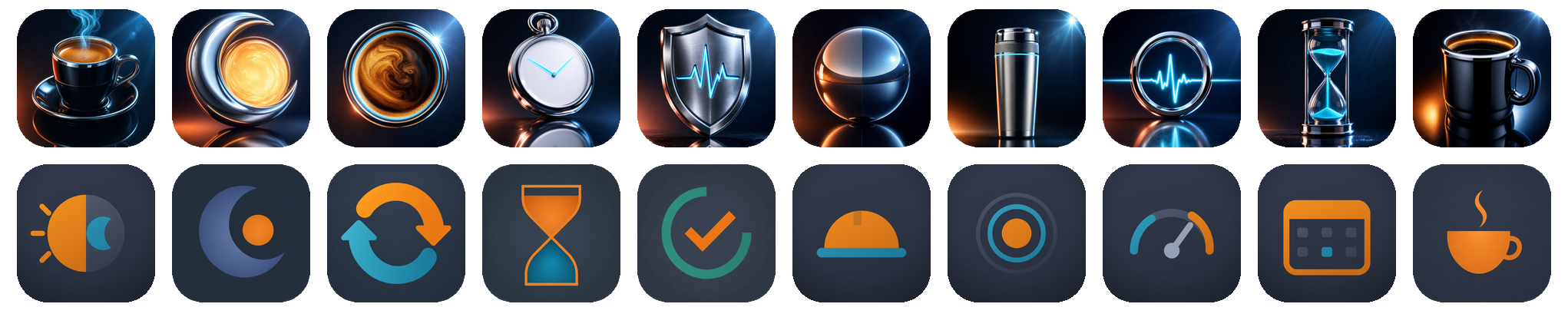
- Choose from 58 app icons, and use ShiftKit in light or dark.
Help built into the app
Answers stay close to the work
In the More list, after Settings, you will find About this app and Help. There is no need to leave ShiftKit to find the basics.
- About this app shows the icon you have set, the app name, the version and build number, the developer and a short summary of what ShiftKit does.
- Help has 88 searchable topics across 24 groups, with an expandable row for each topic.
- The Contact Developer button opens a pre-addressed message with the version and system details already included.
Find it quickly
Search the manual before the next shift
The topics cover getting started, Today, rosters and shifts, logging, reading a roster in, sleep and your body clock, food and drink, medicines and supplements, symptoms and cycle, movement, smoking and vaping, pay, Insights, fit for work, units, backups, checklists and journal, printing and sharing, casual work, Watch widgets and iCloud, Pro, reviews and feedback, Reset, and what ShiftKit is not.
Mac
Keyboard shortcuts
The Mac app is a Mac app. Everything you do often has a key.
Pricing
The daily job is free. Pro is the rest of the toolkit.
Shifts, readiness, water and quick caffeine logging are free and unlimited, with no trial clock. Pro opens the named drink library with its ingredients, the long view of your history and trends, printed and exported reports, dated iCloud backups, and reminders built around your roster. One purchase covers iPhone, iPad, Mac and Apple Watch.
Free
AUD$0
No account, no trial clock.
- Unlimited shifts
- Unlimited readiness and intake logging
- Today screen
- 2 checklist templates
- 30-day journal
- 7-day analytics
- 1 reminder
- Sleep sound and alarm screen, with the wake alarm and 8 sleep sounds
Pro · Annual
AUD$44.99 / year
7-day free trial. Also AUD $7.99 / month.
- Full-history trends and reports
- Unlimited checklist templates
- Shift-aware reminders
- CSV and PDF export
- Home and Lock Screen widgets
- Watch complications
- Unlimited journal
- Roster pattern builder
- Named drink library, ingredient detail and sugar tracking
- Apple Health, both ways — sleep fills in a check-in, water and caffeine go back
- Automatic iCloud backups you can restore from
- The other 72 sleep sounds, fetched on demand, with the guided sessions and paced breathing
Lifetime
AUD$119.99 once
Every Pro feature, no renewal.
- Everything in Pro, permanently
- Universal Purchase across iPhone, iPad, Mac and Watch
- Future Pro features included
Universal Purchase — buy once and it works on iPhone, iPad, Mac and Apple Watch. All prices on this page are in Australian dollars (AUD) and are subject to App Store pricing at launch. If you buy from outside Australia the App Store charges you in your own currency, and the amount it shows you at checkout is the one that applies.
Before you start
A tool for you, not a record for anyone else
ShiftKit is not a medical device. It does not diagnose anything, it does not assess fitness for duty, and it is not an approved system of record. Do not put patient-identifying information or incident numbers into it. Everything it shows you is a summary of what you chose to log, held in your own iCloud.