
Your roster
Your roster runs your life. This is the part that runs your roster.
Plan a swing in blocks, stamp the kinds you actually work, keep the site and the role on every shift, put your partner’s shifts underneath yours, write the lot out to the household calendar, and read next month in from the photo you were sent.
Nothing here is a rebuild of your roster in someone else’s shape. It is your roster, entered once, in whichever way is least work on the day.
Planning a swing
Plan a swing, not a month
The week planner is built around blocks of work, because that is how a roster actually arrives. Drag a shift, duplicate it across the swing, and let the pattern builder repeat it.
- Rotating patterns: 4-on 4-off, 2-2-3, 7-on 7-off, and FIFO swings like 8 and 6 or 14 and 14, or a pattern of your own. Each day of a block can carry its own stamp, so a swing runs days and then nights.
- Set a swing to repeat until you stop it. ShiftKit keeps about six months of it on the calendar and tops that up each time you open the app, so there is always half a year in front of you to plan leave and flights around.
- Stopping a repeating swing is one button, and it asks whether to leave what is already there or take the untouched days ahead back off. Days you have worked or written on are never removed.
- Clear a run of days: set two dates and a fortnight of swing comes off in one go, stamped as leave in the same action if you want. The days that were already off stay off, and the whole run goes back the way it was in one tap.
- Your baseline decides how a new shift arrives already stamped. Choose a fixed roster, a rotation of shift kinds, or casual and locum where nothing is assumed. A rotation is a list of runs — a kind of shift and how many days of it come in a row, in the order you work them — up to eight runs, with the usual shapes ready to go. It never changes a shift you have already entered.
Whichever way the roster arrives
Typed, generated, or read from a file
The planner, the pattern builder and the roster reader all write to the same calendar, so you can generate a swing, correct one day of it by hand, and read the next month in from the file payroll sent.
On the screen
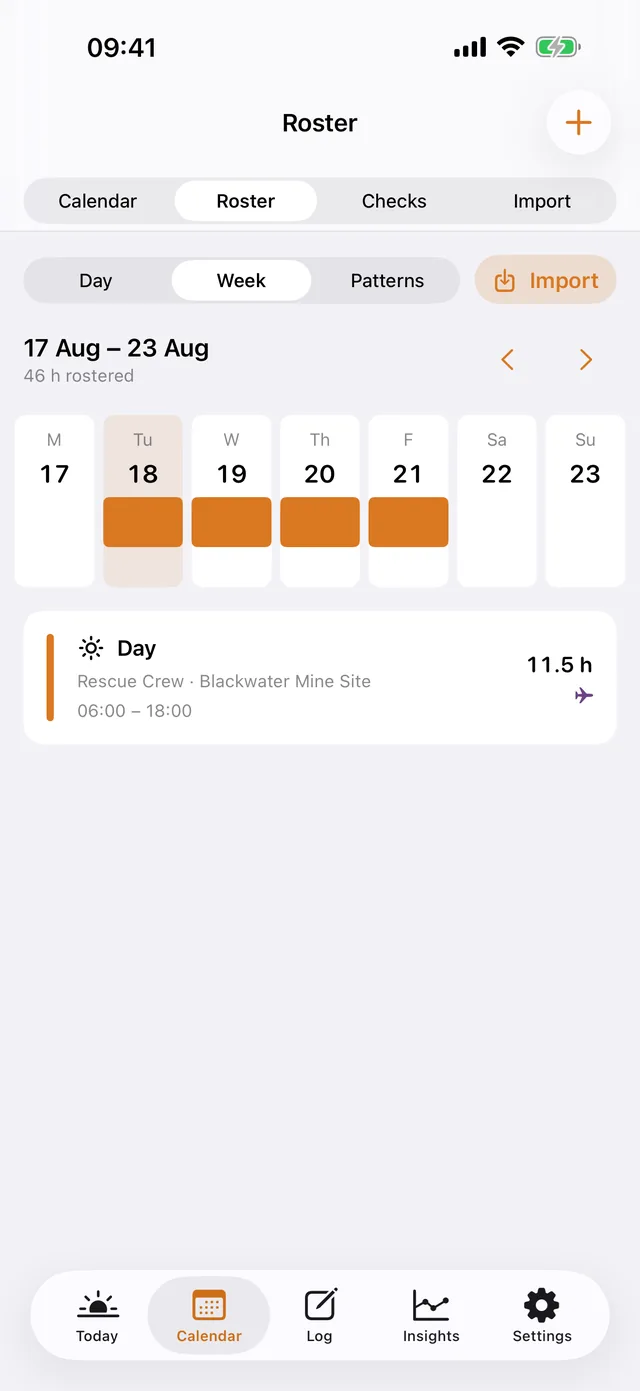
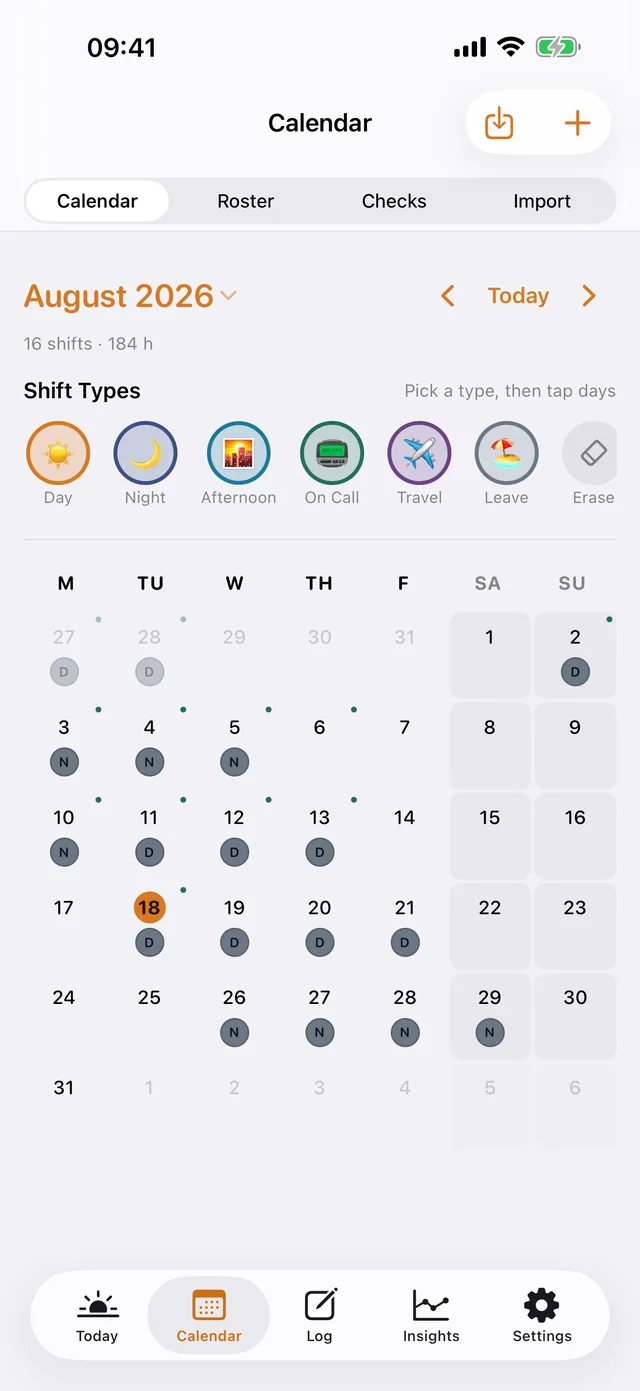
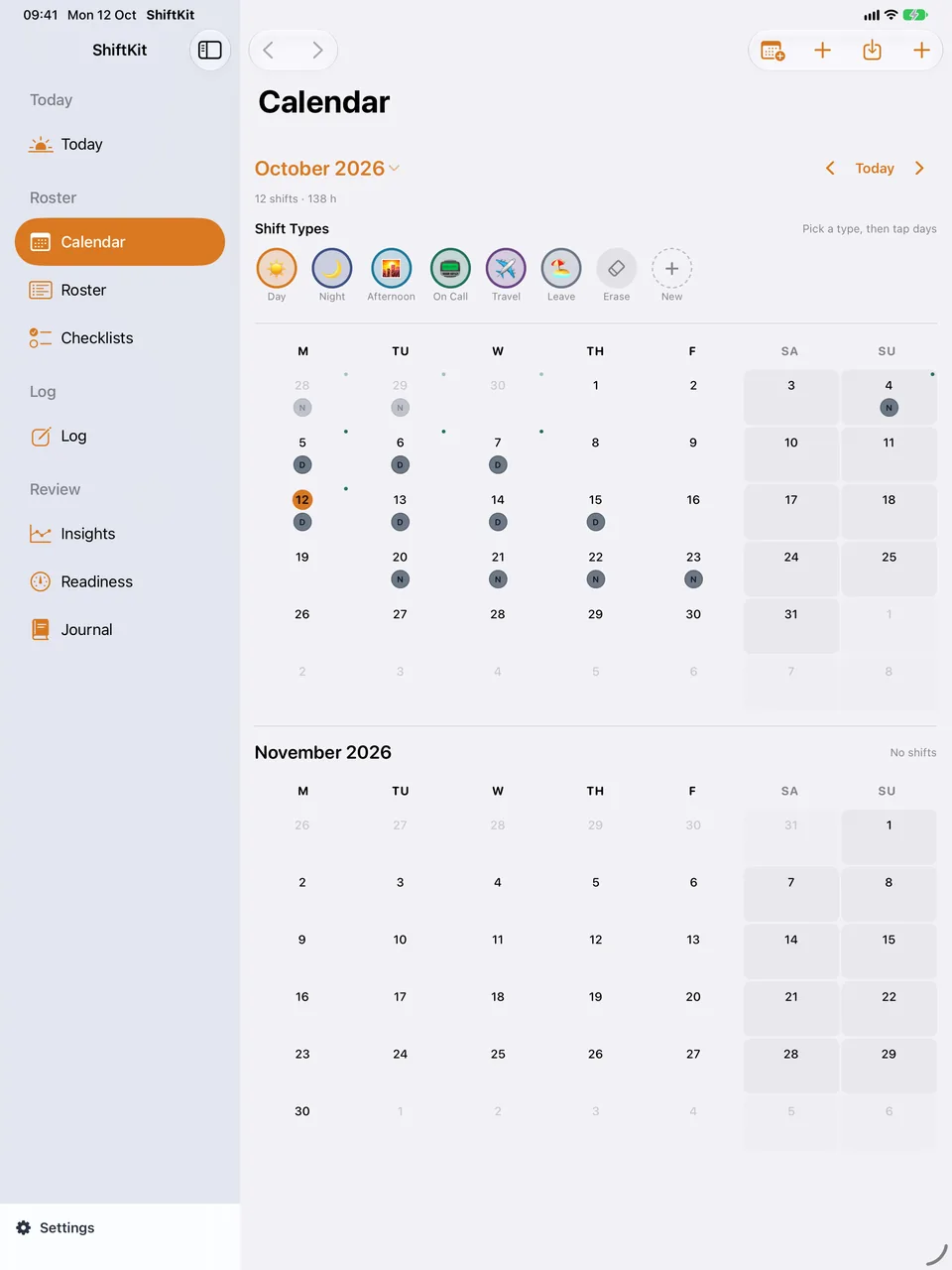
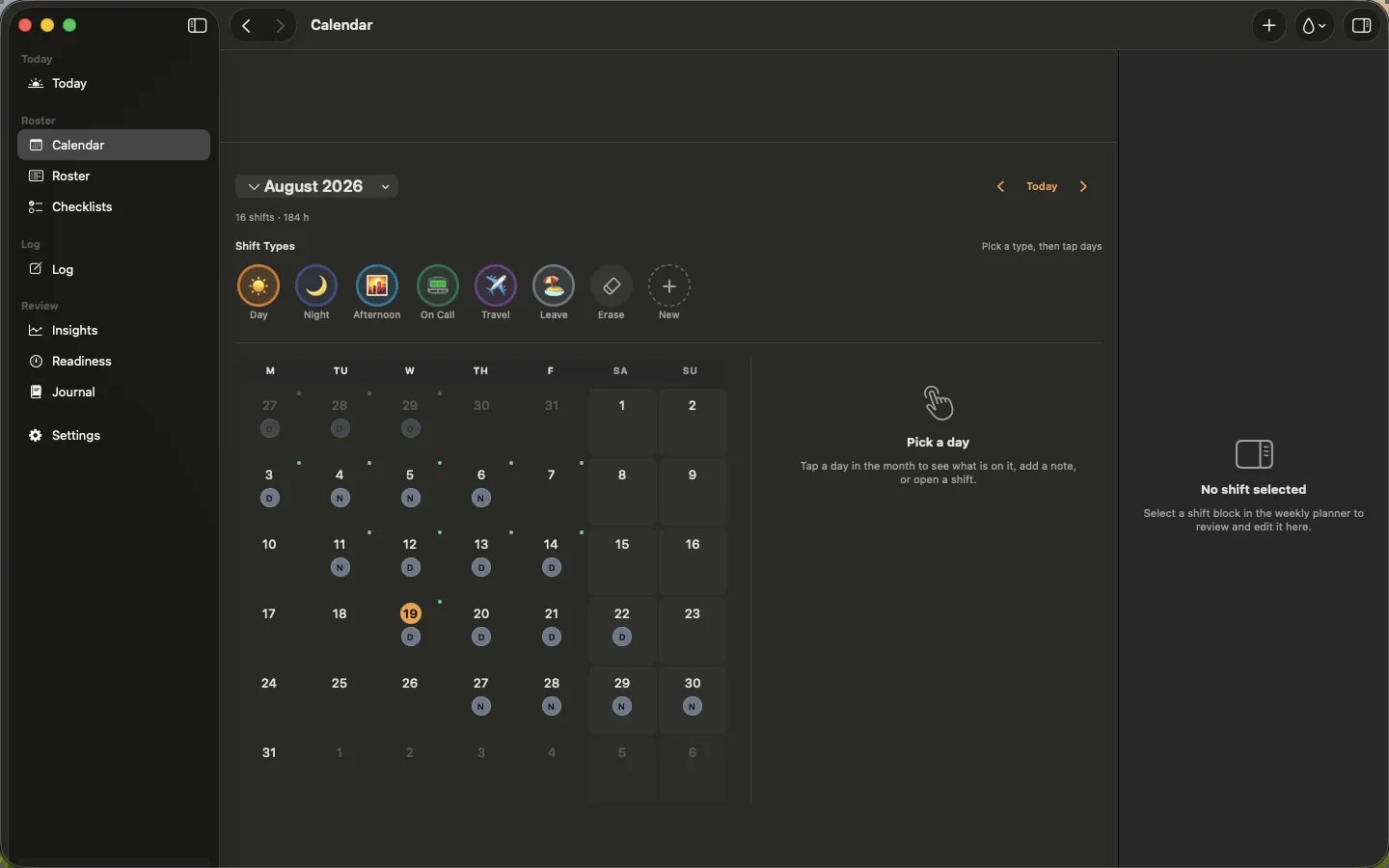
The roster, on every device
Shift kinds, stamps and colours
Eight kinds, and a stamp for the ones you work most
A shift carries a kind, times, a crew, a role and a site, so the roster reads like your paper copy.
- Eight shift kinds — Day, Night, Afternoon, On-call, Standby, Training, Leave and Travel. Travel is violet with an aeroplane icon, and its time counts as worked time in month totals.
- A stamp is a shift you work often: a name, a one or two character badge, a colour, default times and an optional marker. Make one from the shift palette context menu on the calendar, then tap it onto any day rather than filling in the times again.
- 42 preset colours, and Mix your own opens the system colour picker with a wheel, sliders and an eyedropper. A colour you add joins the grid for every stamp, up to 24 of your own.
- Time steps set how far a shift time or length moves with one tap: 15 minutes, 30 minutes or an hour.
- Night shifts fill both days is a switch. On, a shift finishing after midnight is marked on the night it starts and again on the morning it ends. Off, it is marked only on the day it starts, the way most paper rosters are written. It changes the month grid only — the shift’s own times and paid hours never change either way.
- The shift card on Today has Start and Finish. Tapping them records the actual times alongside the rostered ones, so a late finish is kept rather than lost.
- Add a marker or a quick comment to a shift, or to the day itself, when plans change.

Sites, roles and travel
Work that moves between places
One roster rarely means one place. Sites, roles, start times and how you are getting there are all kept against the day.
- Roles & Sites: a different role for every site and every shift, filled in from your usual one and changed in a tap when the day is different.
- The Shift Time Library holds as many start and finish times as your roster actually uses, with the site attached to each one, instead of a single day time and a single night time.
- Travel Logistics records how you are getting there — your own car, a hire car, the company car, or flying — and keeps it against the day.
- Itinerary Import takes the PDF or Word itinerary your employer sent, reads out the flights, the hire car and the hotel, and offers them to your roster. Share straight from your email app, and keep the documents on file for as long as you choose.
- Casual mode turns on a Work section in the Calendar tab for sites, placements and availability. A site is somewhere you work, a placement is a stretch of work at one with its own dates and pay details, and availability is the days you have told an employer you can take. Nothing else moves: the tabs stay where they are.
The hours side
What you worked, and what you were paid for
Rostered times and the times you tapped Start and Finish are both kept, and the payslip you add later carries the paid hours as printed. The two are shown, never reconciled for you.
The shared roster
Two people, one roster
Send your partner a share link over iCloud and your shifts appear in their copy of ShiftKit. No spreadsheets, no photographs of a printed roster, no files to send.
- Overlay only — their shifts sit under yours as a striped block.
- Let me copy — pull a single shift across when you need it.
- Merge automatically — their roster is kept in step with yours.
- Markers and comments — choose whether your own operational notes go with a shared roster, and whether you see each person’s notes.
- What you share and with whom is up to you, and sharing can be stopped at any time from the same screen.
Be clear about the direction
Each invitation shares one way. If you both want to see each other’s shifts, you each send one. Travel entries, markers and any comments you choose to include are part of the shared roster. Sleep, hydration, caffeine, readiness, checklists and journal entries are never shared.

Calendar sync
In the calendar everyone already reads
Shifts can be written to any calendar account your device holds — iCloud, Outlook, Microsoft 365, Exchange, Google, Fastmail or on-device — so the rest of the household sees them without opening ShiftKit. Sync is one-way, out of the app.
- Automatic on every change, or manual when you say so.
- Pick the destination calendar — a dedicated “ShiftKit” calendar is the tidy option.
- Calendars are grouped and labelled by the account they belong to, read-only feeds are left out, and ShiftKit tells you when the calendar you chose sits on a work account your colleagues may be able to see.
- A window you control: 60 days ahead and 14 days back by default.
- Markers and operational comments stay in ShiftKit’s calendar, where they can sit on a shift or a blank day.
- It only ever touches the events it created. “Remove ShiftKit events” cleans up everything it wrote.
One direction only
Nothing comes back in
ShiftKit writes shifts out and reads nothing from your calendars. Anything you change in the calendar app is not read back into your roster.
Reading a roster in
Hand it the roster you were sent
A photo, a screenshot or a PDF. Open Calendar, tap Import, choose the file or the picture, and ShiftKit reads the dates and times it can find. Nothing is saved until you accept it.
- A review list first: one row per shift with the date, the times and the kind it guessed. Change a row, switch off a row that should not be there, then save the rest. A row it was unsure about is marked so you look at it rather than trusting it.
- Tolerant about how rosters are written — day first and month first dates, two and four digit years, full stops, slashes and dashes, times with and without a colon, am and pm in either case, 24-hour times, and a finish earlier than the start, which it treats as overnight. Where a date could be read two ways it tells you which reading it used.
- A button on the import screen sends a roster it could not read to the developer. It attaches that file and nothing else, and it opens as a message you can look over before you send it. Rosters sent that way are used to teach the reader that shape and are not kept beyond that.
- It never quietly doubles up shifts you already have. Where a shift lands on a day that already has one, the review list says so and you choose to keep what you have, replace it, or keep both. The same check runs when you restore a backup or accept a shared roster.
Before anything saves
You read it, then it goes in
The reader is a first draft of your roster, not the final word. Every row is yours to correct.
Widgets, watch and the countdown
The next shift, where you glance
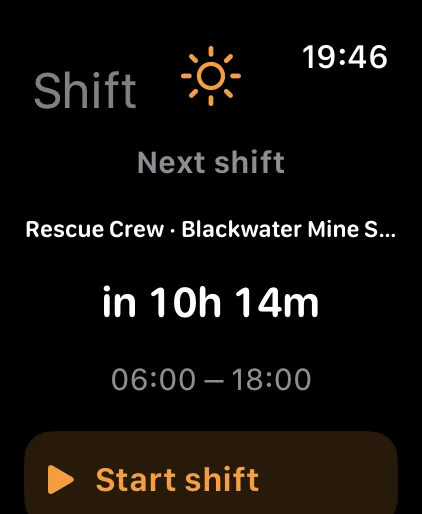
The next shift and the time until it sit on the screens you already look at, without opening the full app.
- Home Screen and Lock Screen widgets show the next shift, a next-shift countdown and the day’s fluids. Press and hold the Home Screen, tap the plus, then search for ShiftKit.
- Complications put the readiness figure or the next shift on the watch face.
- The Apple Watch app shows your next shift and takes a quick fluid or caffeine log from your wrist. It reads the same data as the phone.
- With iCloud on, your shifts and logs appear on your other devices signed in to the same Apple Account, and Sync your settings carries your switches across as well — how often it backs up, how far ahead it writes to your calendar, the app icon and the app lock.

Free and Pro
What stays free, and what needs Pro
Free, with no ceiling
- Unlimited shifts, across all eight kinds — day, night, afternoon, on-call, standby, training, leave and travel.
- The month calendar and the week planner, with a marker or a short comment on any shift or on the day itself.
- Your baseline: a fixed roster, a rotation of shift kinds, or casual and locum where nothing is assumed.
- Shift stamps, 42 shift colours, Mix your own, and time steps of 15 minutes, 30 minutes or an hour.
- Up to three work sites, with placements and availability.
- Starting and finishing a shift, so the actual times sit beside the rostered ones.
Part of Pro
- Roster Pattern Builder — generating a swing, repeating it until you stop it, and clearing a run of days for leave in one go.
- Reading a roster in from a photo, a screenshot or a PDF.
- Shift Time Library, Roles & Sites, Travel Logistics and Itinerary Import.
- More than three work sites.
- Home & Lock Screen widgets and Watch complications.
- iCloud Backup & Sync — the same roster on every device, and dated backups you can restore onto a new iPhone.
- Printed Reports and CSV or PDF export of your calendar and shift list.
Pro is AUD $7.99 a month, AUD $44.99 a year with a 7-day free trial, or AUD $119.99 once for Lifetime, which includes Pro features added later. One purchase covers iPhone, iPad, Mac and Apple Watch.
Before you start
A tool for you, not a record for anyone else
ShiftKit is not a medical device. It does not diagnose anything, it does not assess fitness for duty, and it is not an approved system of record. Do not put patient-identifying information or incident numbers into it. Everything it shows you is a summary of what you chose to log, held in your own iCloud.